Post
(How to make a guild recruitment post)
Hello.
I'm a user running a guild on the Reboot 1 server.
I'm writing this because I want to help those who are growing their guilds.
I often see people having difficulty creating guild promotion posts, so I thought I'd offer some help.
It's really easy to make, so follow along slowly.
(There's also an image I made myself at the end, so please refer to it)
First of all,https://www.canva.com/ko_kr/create/posters/I'll post the site first.
What this site does is allow you to easily and freely create guild promotional materials.
-Access screen
When you enter the site, you'll see it like this. Click on Design (it should say 'Design a poster' to be normal).
When you enter the site, you'll see it like this. Click on Design (it should say 'Design a poster' to be normal).

If you go into Design, this kind of window will pop up.
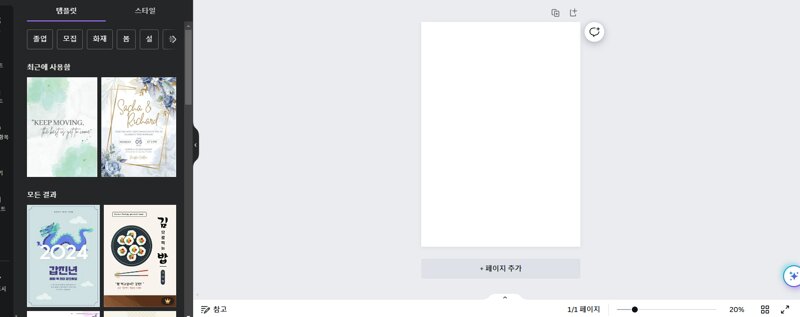
Now it begins.
1. Click on Templates in the left design list.
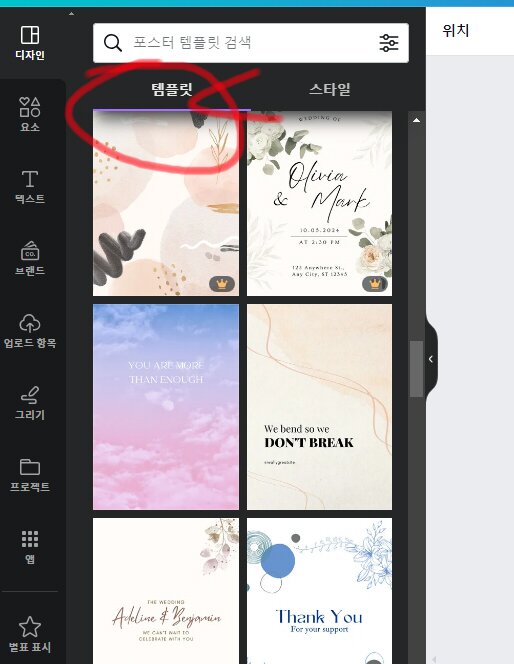
2. Choose one of the various free images and select it.
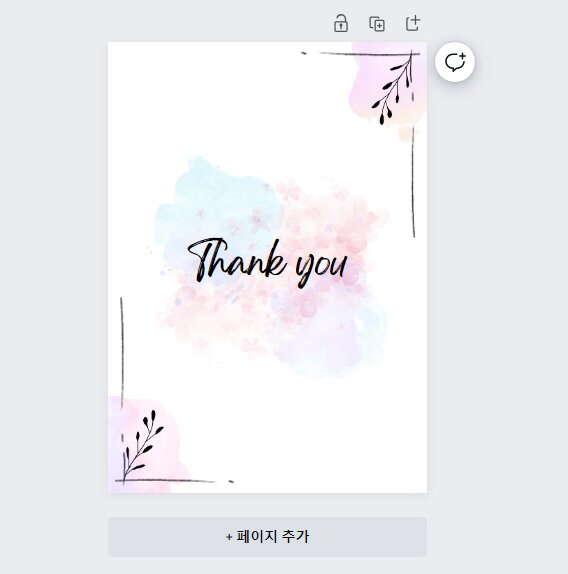
I chose this image.
3. Press the letters written on the existing image and use the copy and paste function,
Guild Name//Guild Introduction//Guild Requirements// etc. Modify it with the words you want and divide the partitions.
The copied and pasted image can be moved, resized, and angled by clicking on it with the mouse.
How to copy: Click->ctrl+c->ctrl+v
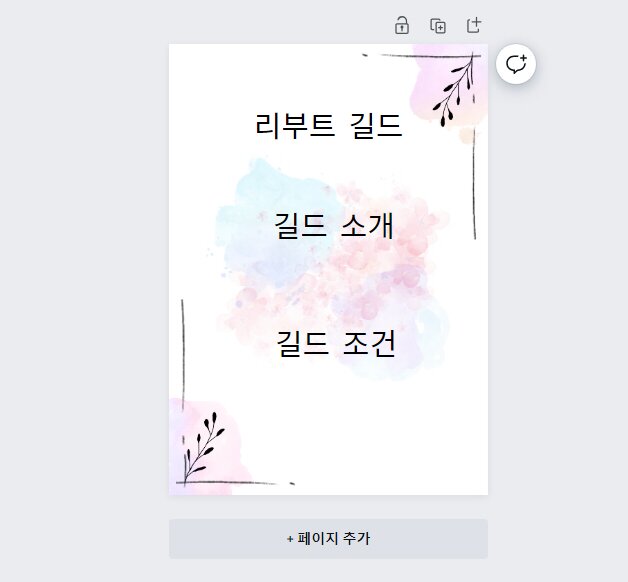
If you've followed me this far,
4. If you click on the pasted letters, there is a font setting in the upper left menu bar.
Press the font setting and change it to the font you want.
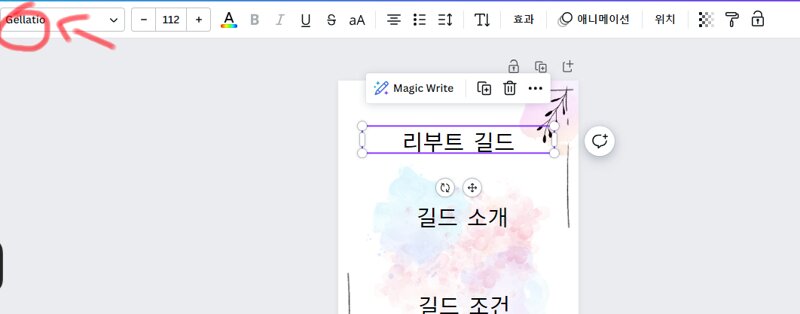
Change complete
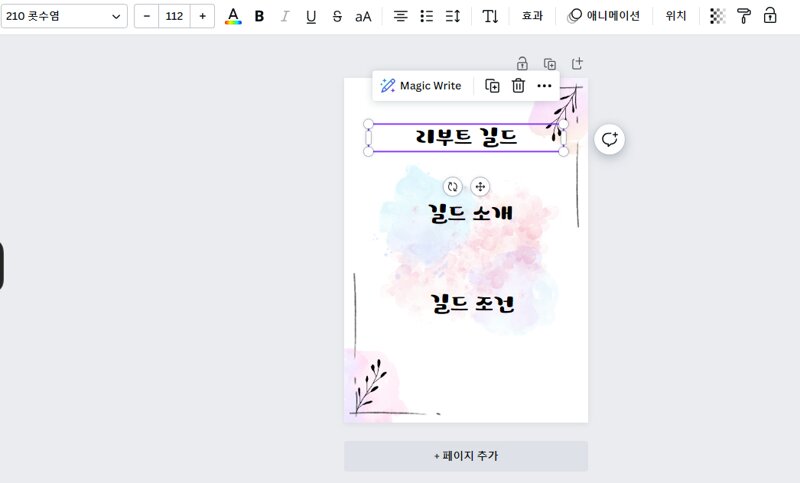
Almost done.
5. Now copy and paste one of the partition titles and reduce the size.

6. If you made it small like the example photo, write the text you want and change the font.
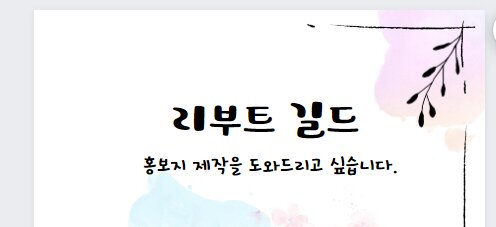
You can change it like this.
7. Now you can freely write the text you want between the partitions you have divided.
(If you go to Inven Guild/Friend/Farm Search, you can do it quickly.)
8. If you're done, you need to save it, right?
(If you go to Inven Guild/Friend/Farm Search, you can do it quickly.)
8. If you're done, you need to save it, right?
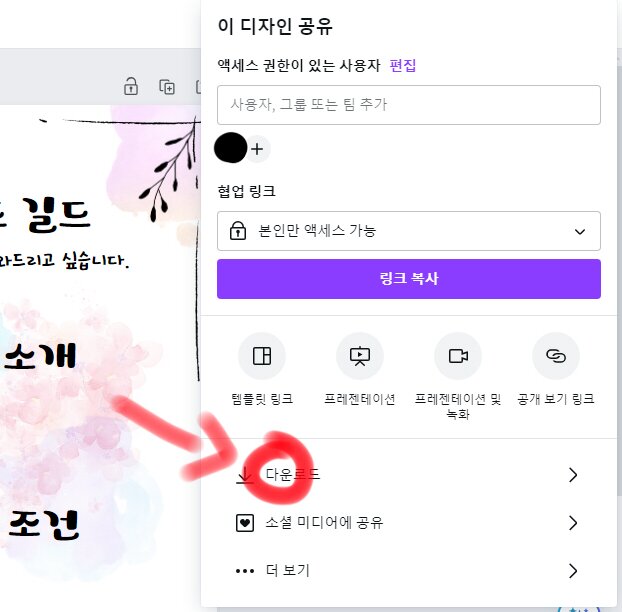
If you look at the top right, there is a Share button.
If you click it, a small window will pop up. Click Download at the bottom of the newly popped up window -> Click Download again to complete.
If you click it, a small window will pop up. Click Download at the bottom of the newly popped up window -> Click Download again to complete.
1. Click Share button
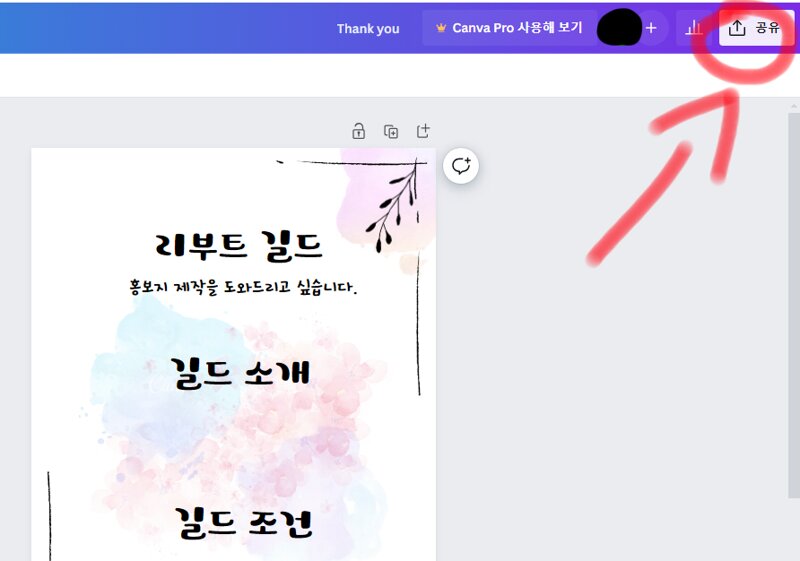
2. Click the Download button at the bottom
3. Click one more time
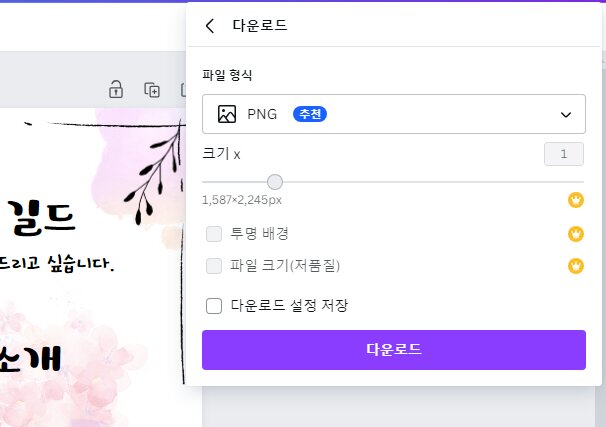
This completes the download.
The file is in My PC -> Downloads folder.
I hope you can easily create promotional materials by reading this article and promote your guild everywhere.
I know it's hard to manage a guild, but cheer up and don't give up! Good luck to everyone until you reach your desired goal!!!
+ Promotional post created on this site
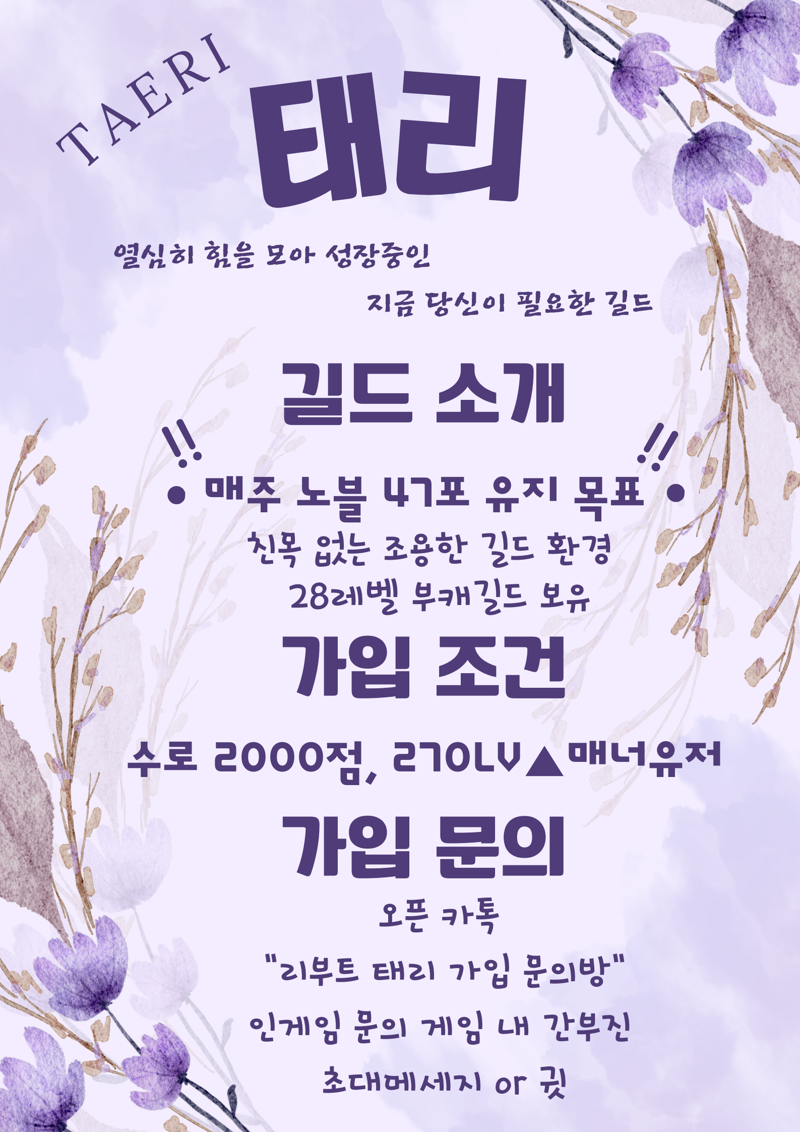
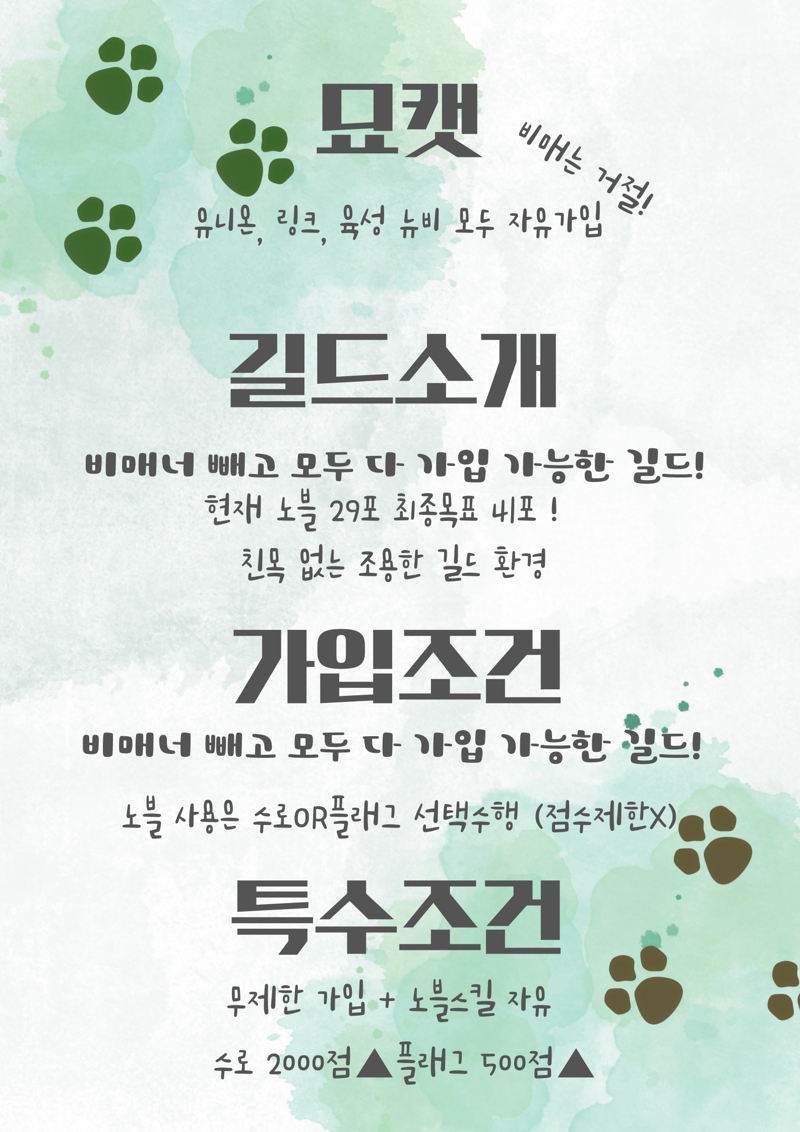
Everyone, easily and conveniently create promotional materials and promote!
MapleStory Inven Tips and TricksEducation time
2024-02-05