Post
A guide to choosing a VPN, signing up, linking your wallet, and installing the game for ArcheWorld
Can't access the ArcheWorld homepage? Install a VPN first!
ArcheWorld is not available in some countries such as Korea, Japan, and Singapore. In these cases, you need to use a VPN to bypass and connect through another country.
You'll need a VPN that allows you to select a country to bypass, which is supported by most paid VPNs and some free VPNs.
Even with paid VPNs, most offer a free trial period, so you can try them for free before paying.
- Recommended Free VPN: Windscribe (Asia server), PrivadoVPN (North America server)
- Recommended Paid VPN: ExpressVPN, Proton VPN, NordVPN
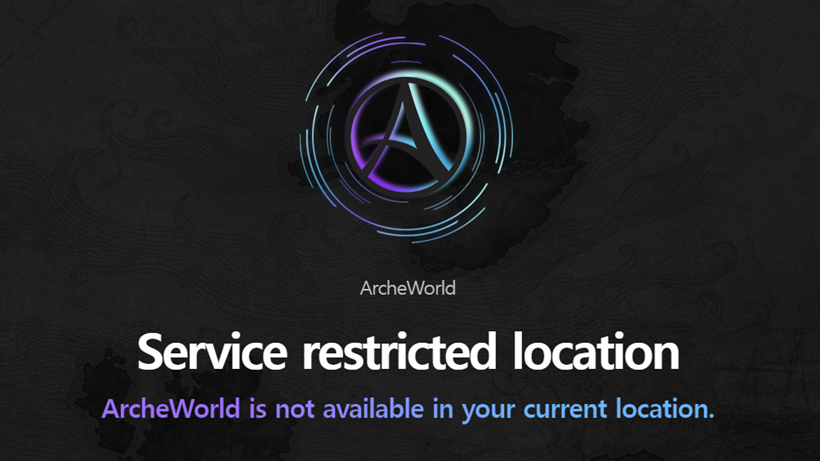 ▲ You can only use ArcheWorld in some countries by bypassing with a VPN
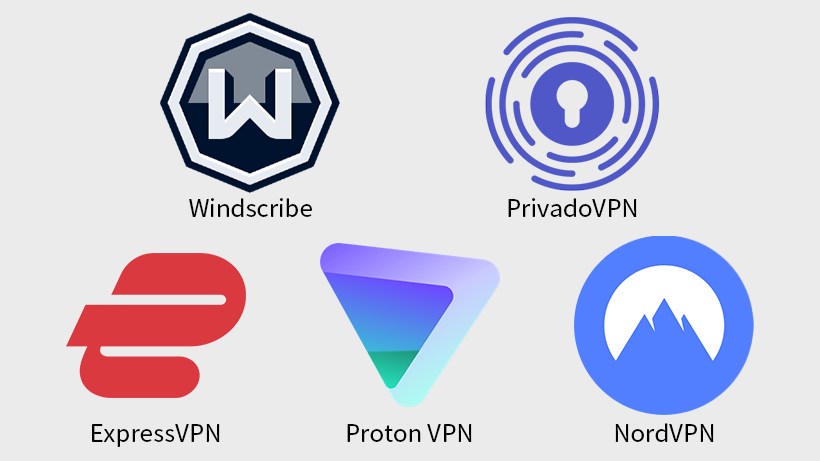 ▲ You need a free/paid VPN that supports the country selection function
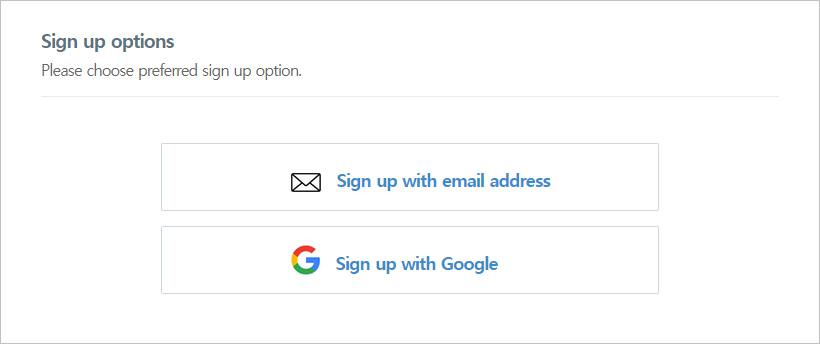
Sign up, just need an email or Google account, OK
You can easily sign up for ArcheWorld with an email or Google account.
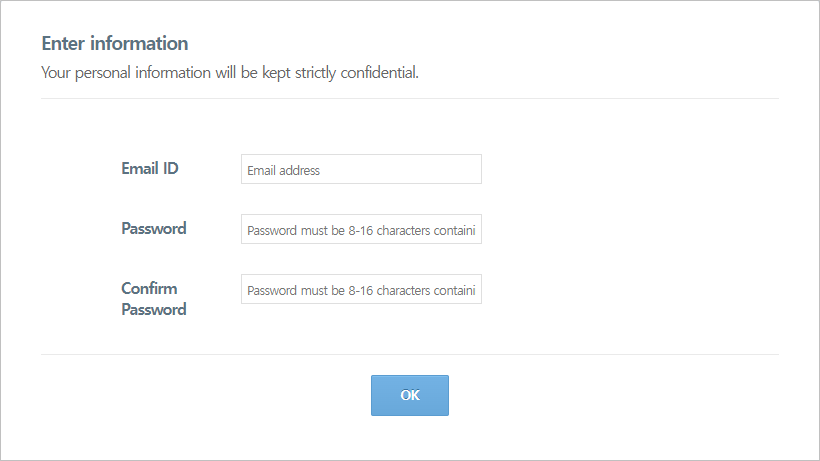
When signing up with email, you need to set your email address and password, and then complete email verification.
When linking with Google, just complete a simple consent process.
If you don't have a MetaMask wallet, easily sign up for Face Wallet
A virtual asset wallet connection is required to run the game.
If you don't have a wallet yet, you can create a Face Wallet using your Google account.
Face Wallet can be easily signed up for with a simple procedure of agreeing to the terms, setting a PIN number, and registering a recovery phone number/email.
If you already have a MetaMask wallet or Coinbase Wallet, you can link your existing wallet to your account by pressing the Wallet Verification button below.
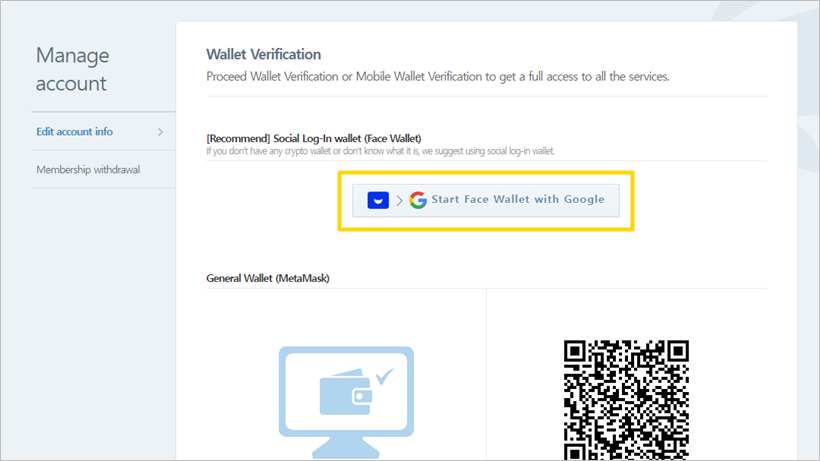 ▲ If you don't have a virtual asset wallet, you can sign up for Face Wallet with your Google account
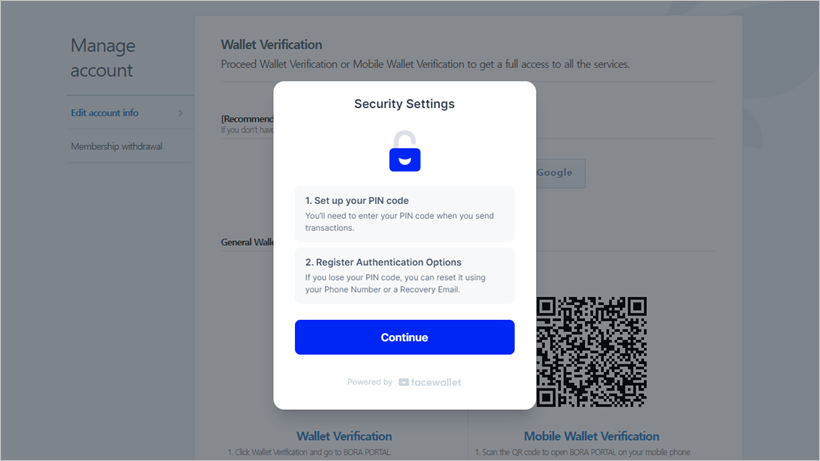 ▲ Sign-up is completed with just agreeing to the terms, setting a PIN, and entering a recovery phone number/email
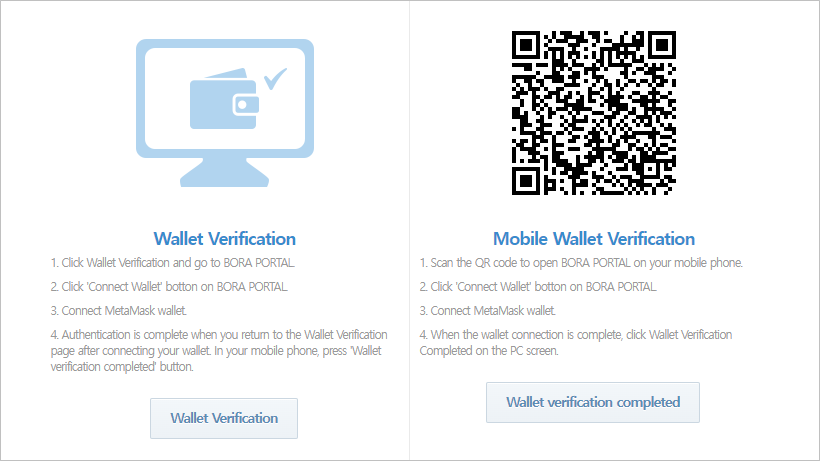 ▲ If you already have a MetaMask wallet, you can link it here
Run the game after installing the launcher and client
You can run the game by pressing the Game Start button on the homepage.
If the launcher is not yet installed and a notification window appears, press the Manually Download button to install the launcher.
After the launcher installation is complete, press the Game Start button again to install the game client and then run the game.
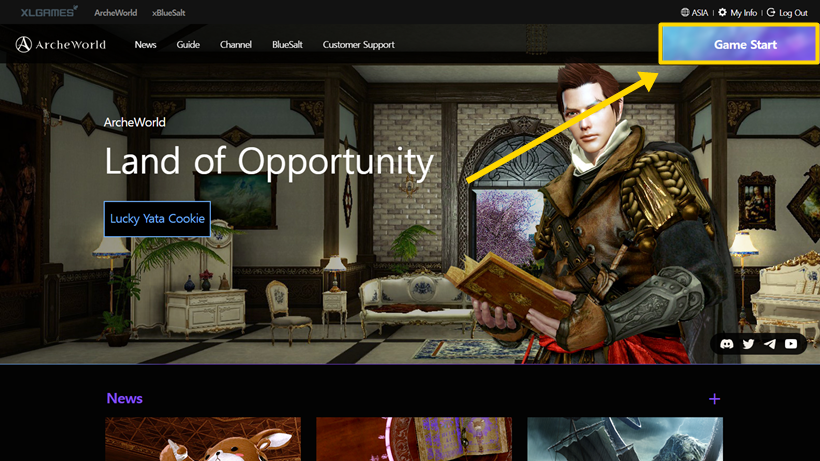 ▲ Press the Game Start button in the upper right corner of the homepage
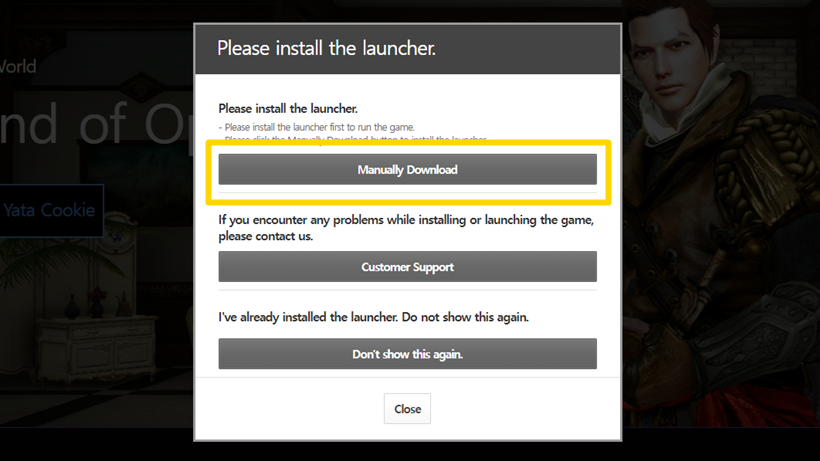 ▲ You can run the game by installing the launcher and game client in order