Post
ABKO AK99 3-Mode OTEMU Custom Switch Mechanical Keyboard (Wired/Wireless Bluetooth Support) Review
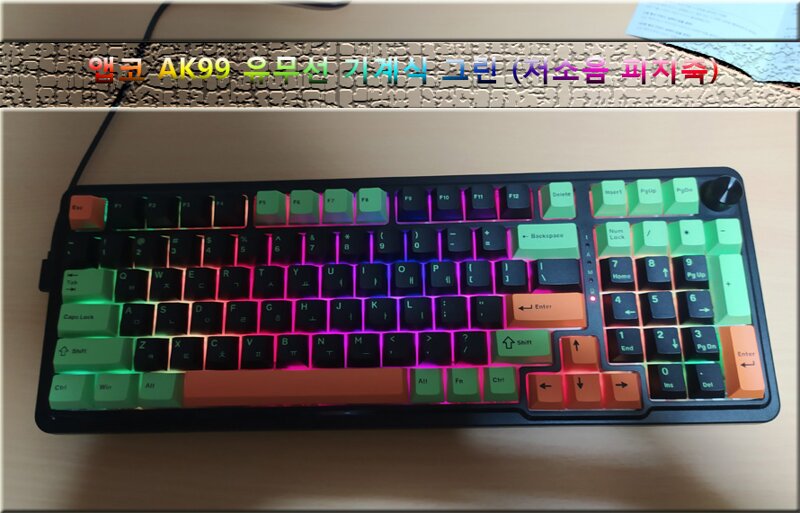
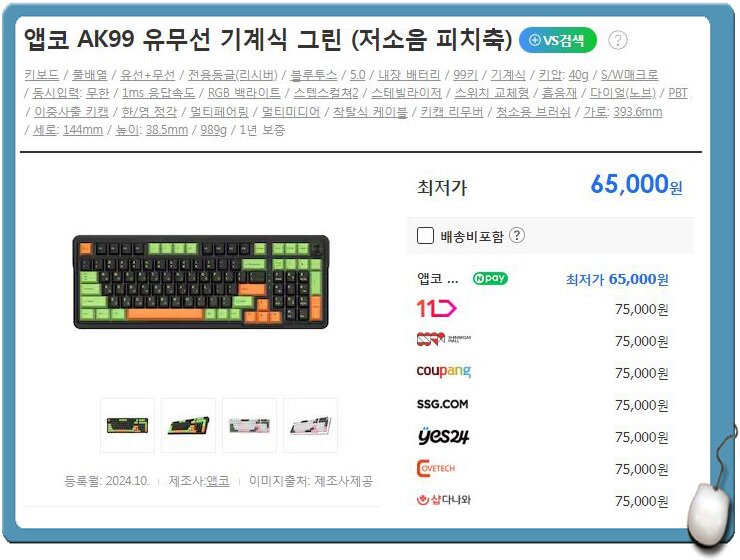
The product I'm introducing this time is the ABKO AK99 3-mode OTEMU custom switch mechanical keyboard, which is currently priced at ₩65,000 on open market shopping malls.
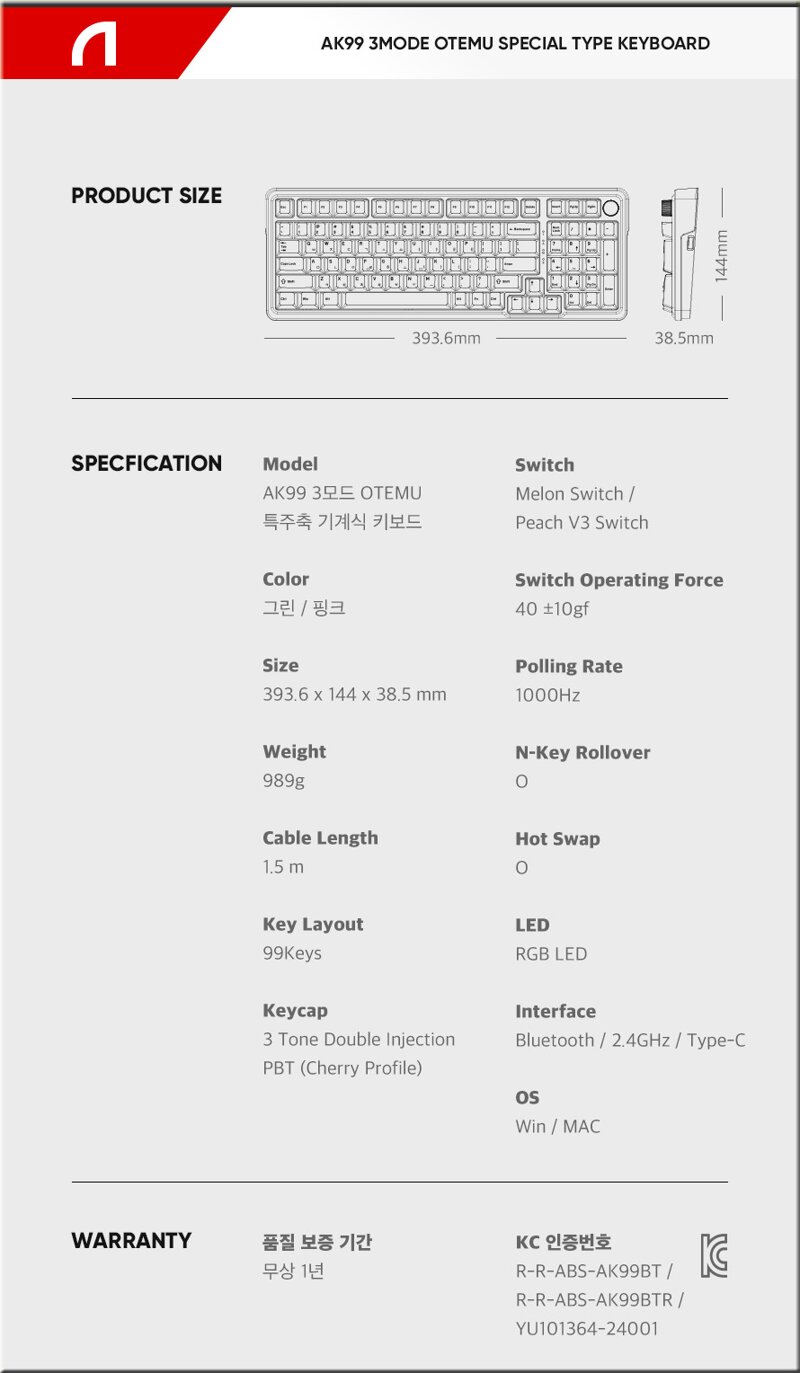
The ABKO AK99 can be classified into two design products, Green and Pink, each with Melon switches and low-noise Peach switches.
The product I will be using this time is the ABKO AK99 Wireless/Wired Mechanical Green (Low-Noise Peach Switch). The Melon and Low-Noise Peach switches are 3-mode OTEMU custom switches developed with ABKO's direct participation, supporting wired, wireless, and Bluetooth. The low-noise Peach switch provides a very quiet typing experience, similar to Red switches.
The keyboard's size is 393.6 x 144 x 35 mm and weighs about 989g. It features a 99-key layout with OTEMU low-noise Peach switches, providing a very smooth and chewy typing experience. It supports a 1000Hz polling rate and supports both Windows and macOS, making it versatile.
The model name AK99 is printed on the front left of the product box, with RGB on the upper right and wired/wireless usability on the bottom.
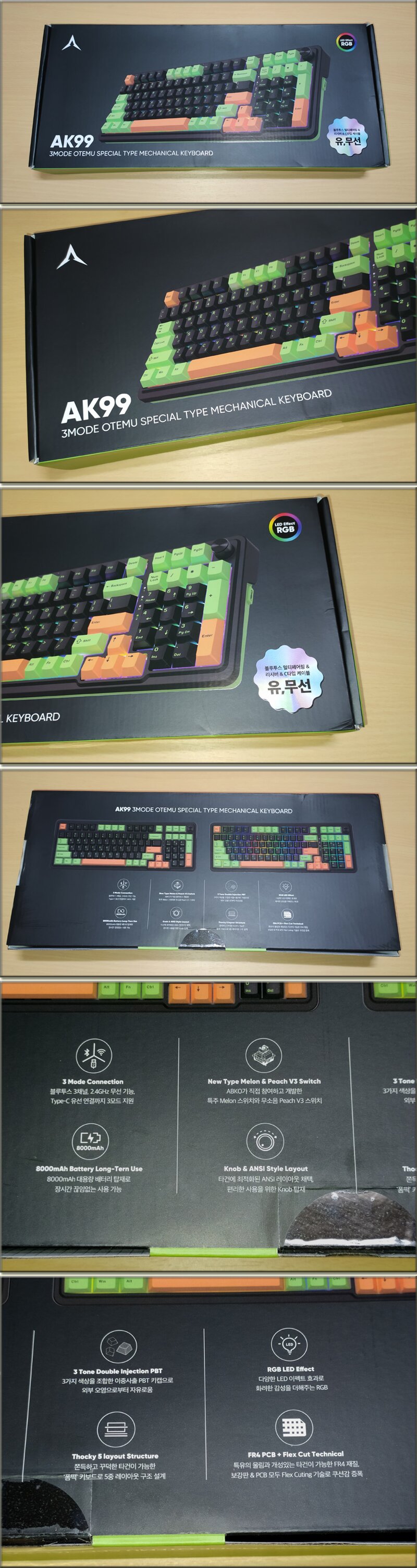
The back of the product box lists 8 key features.
A transparent seal is attached to the side corresponding to the opening, and detailed specifications, product quality information, the manufacturer ABKO's address and website address, and customer service phone number are listed on the opposite side.
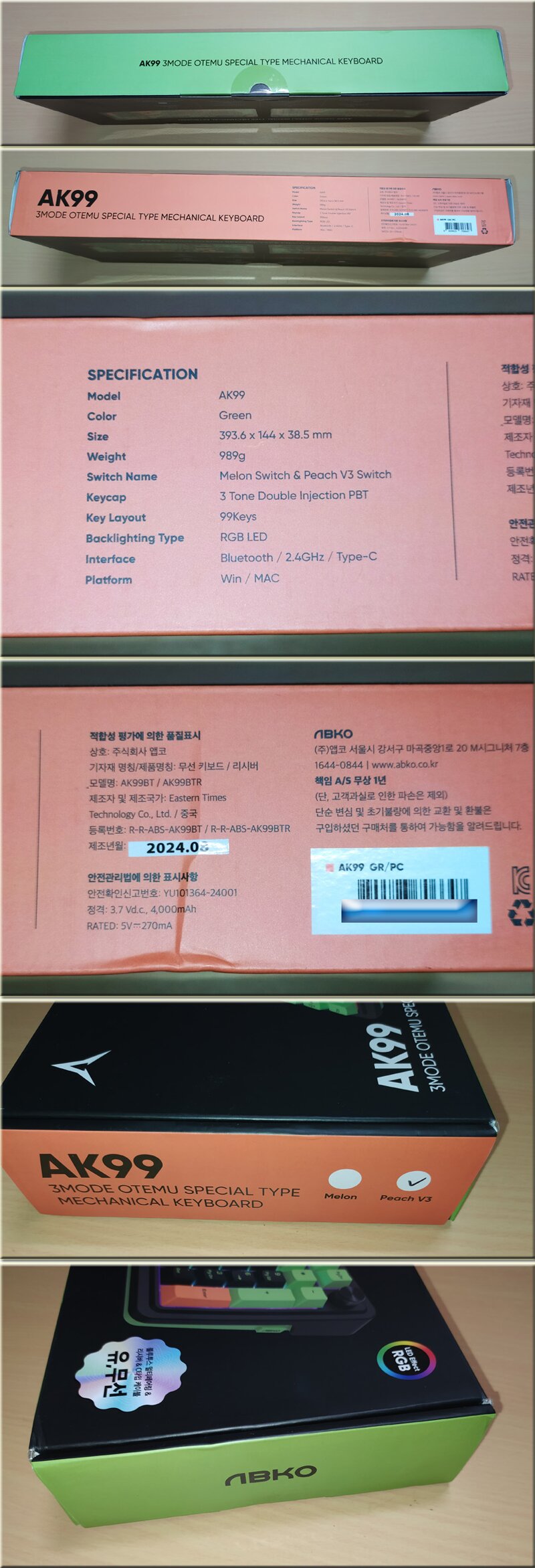
The type of switch applied is indicated on the left side.

When I opened the product box, the package consisted of a user manual, AS application form, keyboard, brush, keycap remover & key switch remover.
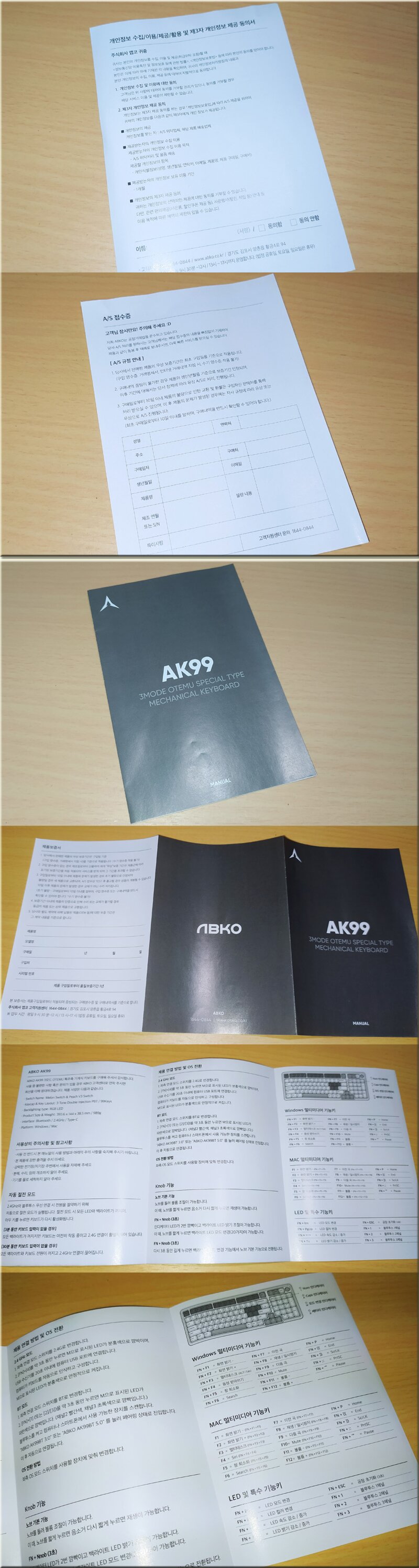
It is expected that A/S can be received conveniently as a separate A/S application form is provided,
Looking at the user manual, detailed descriptions are provided in the order of precautions and references, automatic power saving mode, product connection method and OS switching, Knob function, Windows multimedia function keys, Mac multi function keys, LED and special function keys, and product warranty.
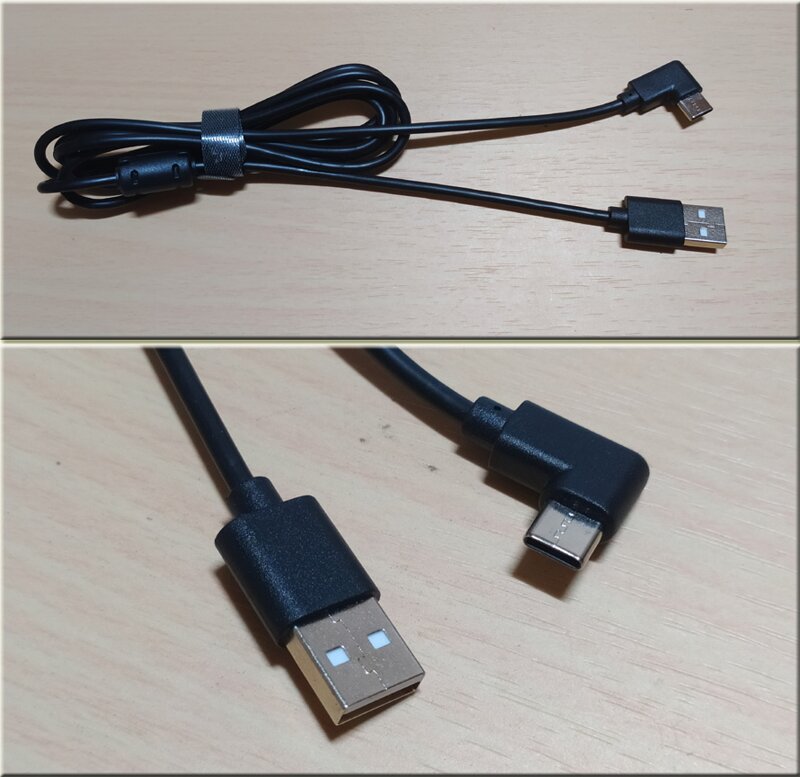
The connecting cable has a Type-C connector on the keyboard side.
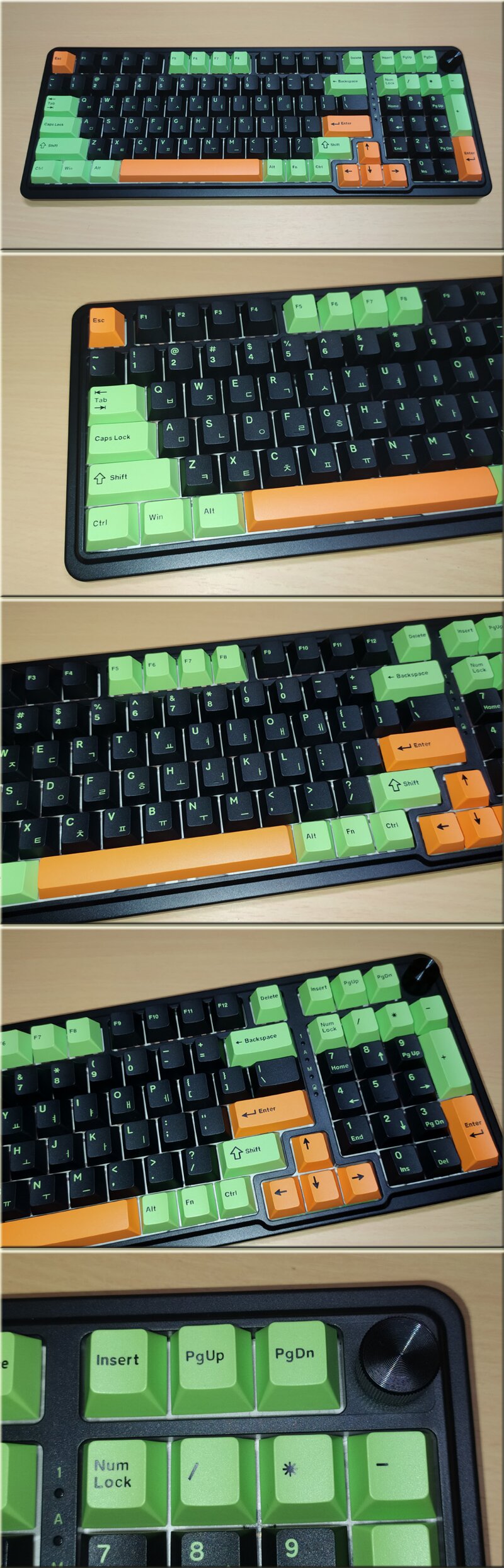
The keyboard seems to come in two types, black and white, and the basic keycap color design is a unique color combination of black (or white) + green + orange. According to the product DB page description, the design is inspired by nature, based on the unique patterns and colorfulness of poison dart frogs. And it is made of high-quality PBT keycaps, which are known to be more durable than low-end ABS keycaps.
The upper right corner is equipped with a volume control dial, which makes it very convenient to adjust the sound volume during the game.
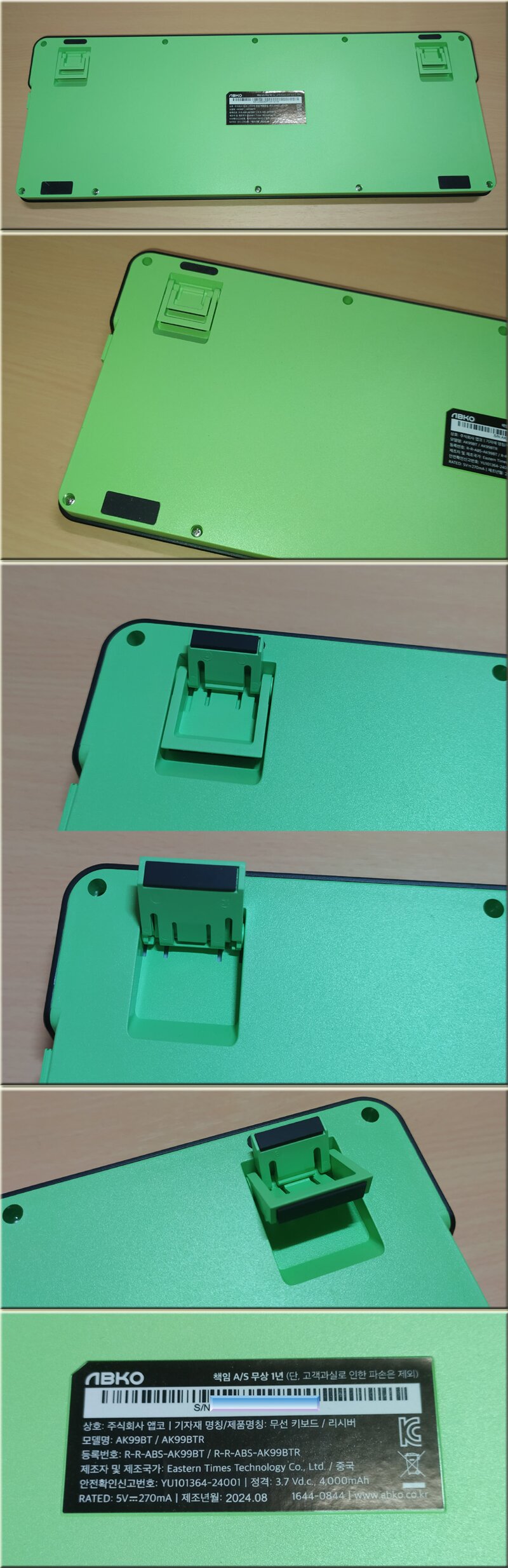
Looking at the bottom, there are anti-slip pads applied in 4 places, so there is almost no keyboard slippage when typing. In the middle, there is a label with the model name, equipment name, certification name, serial number, etc.
The height adjustment tabs are composed of 2 levels, so you can adjust them to your liking, and it is impressive that the bottom is treated in green.
Basically, Step Sculpture 2, an ergonomic design, is applied to help with comfortable typing for a long time without strain.
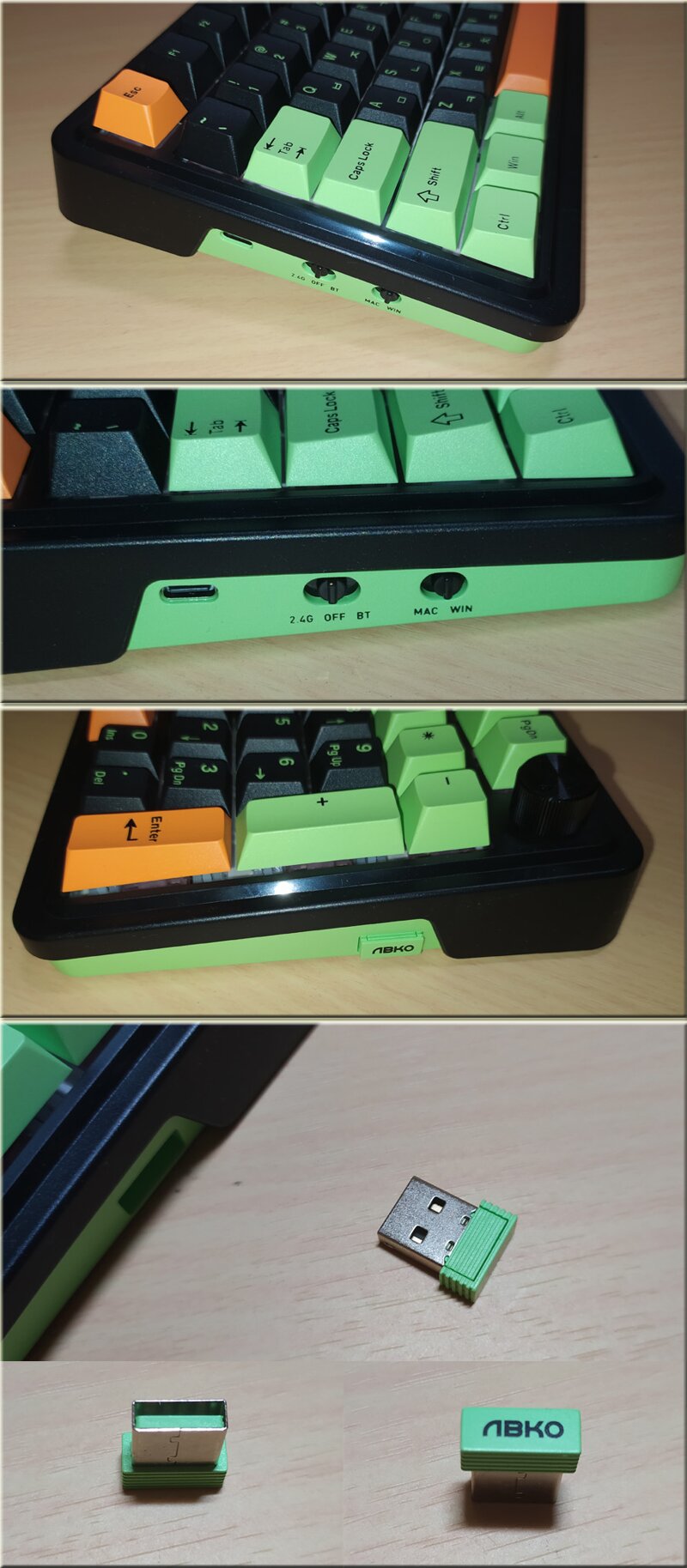
On the left side, there are wireless-Bluetooth change switch and Windows-Mac OS change switch, so you can easily change them.
A wireless receiver was inserted on the right side.
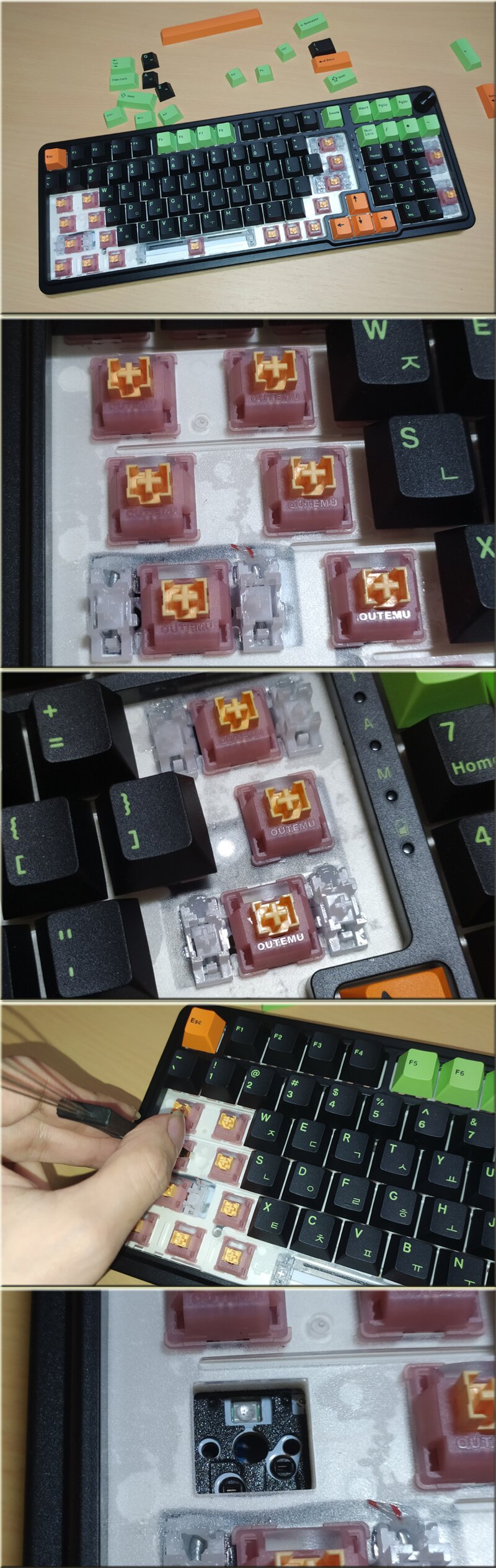
As expected of a low-noise Peach switch, the keycap switch color is peach.
I disassembled some of the keycaps, and the stabilizer is a Cherry-style stabilizer.
It also supports hot-swapping, allowing you to quickly remove and attach key switches with the key switch remover.
I disassembled one of the key switches.

The keycaps are made of PBT material, and the printing condition is very clean and the injection condition looks very good.
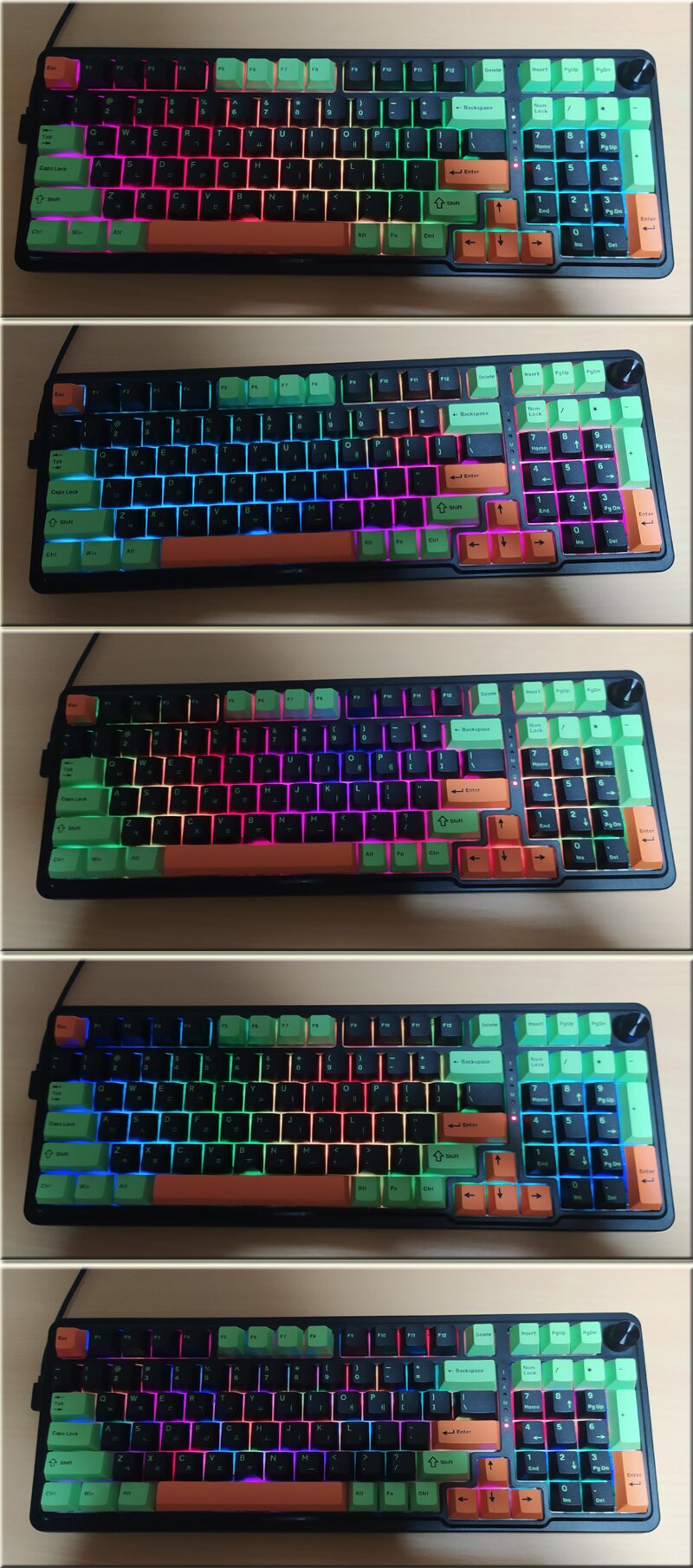
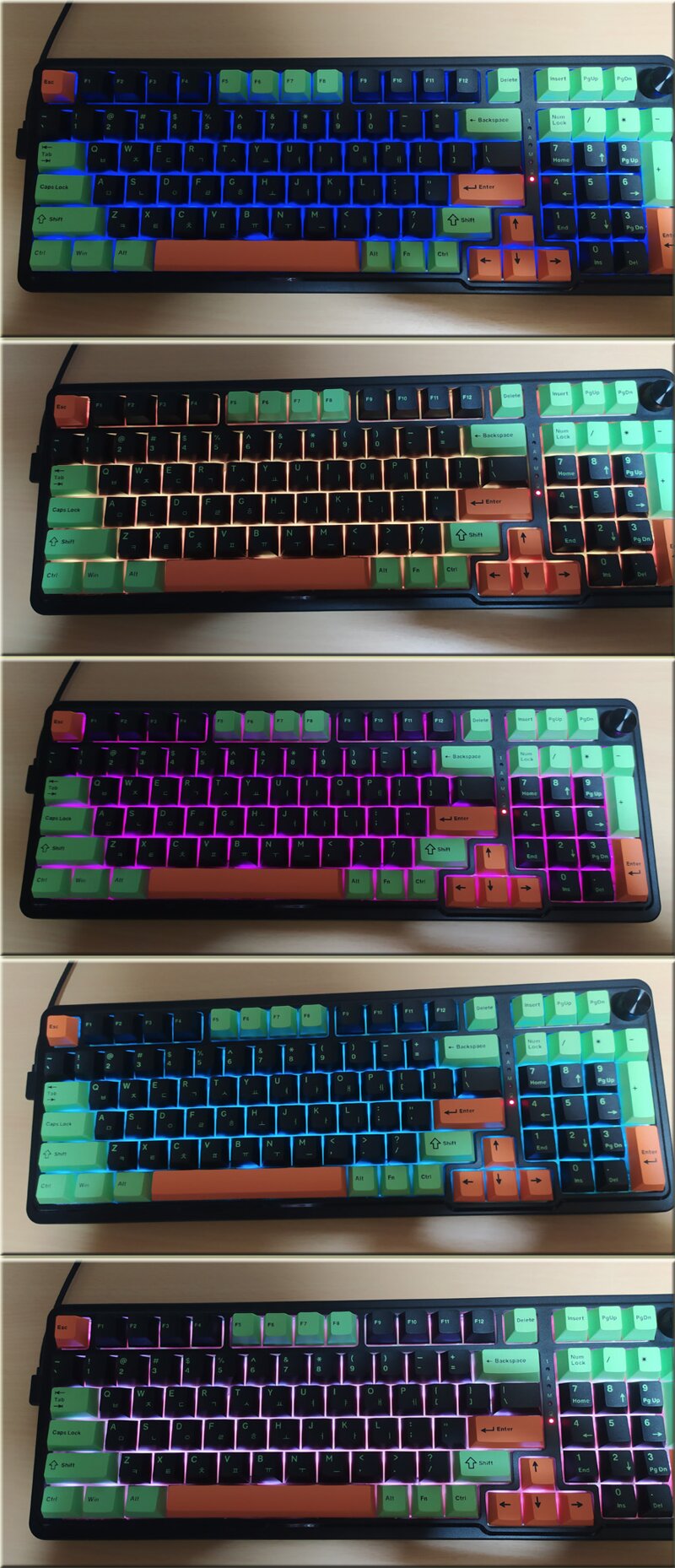
The ABKO AK99 provides a fairly diverse RGB LED mode. To change the LED mode, press FN + INS, and to change the color, press FN + PgUp. I filmed the LED mode change in the video below.
[ 앱코 AK99 유무선 기계식 그린 (저소음 피치축) - LED 모드 ]
[ 앱코 AK99 유무선 기계식 그린 (저소음 피치축) 한글 타자 타건 동영상 ]
With a 5-layer layout structure, a FR4 flex-cut structure PCB, and a silicone gasket installed to prevent contact between the plate reinforcement plate and the housing, effectively suppressing the echo, I hardly felt any echo when actually typing Korean, and the chewy yet extremely smooth typing feel and fast response speed allowed me to type comfortably for a long time without strain.
Looking at the status indicators, they are in the order of Num Lock - Caps Lock - Mode Display - Windows Key Lock,
When connected via wired, the mode change status, etc. are OFF.
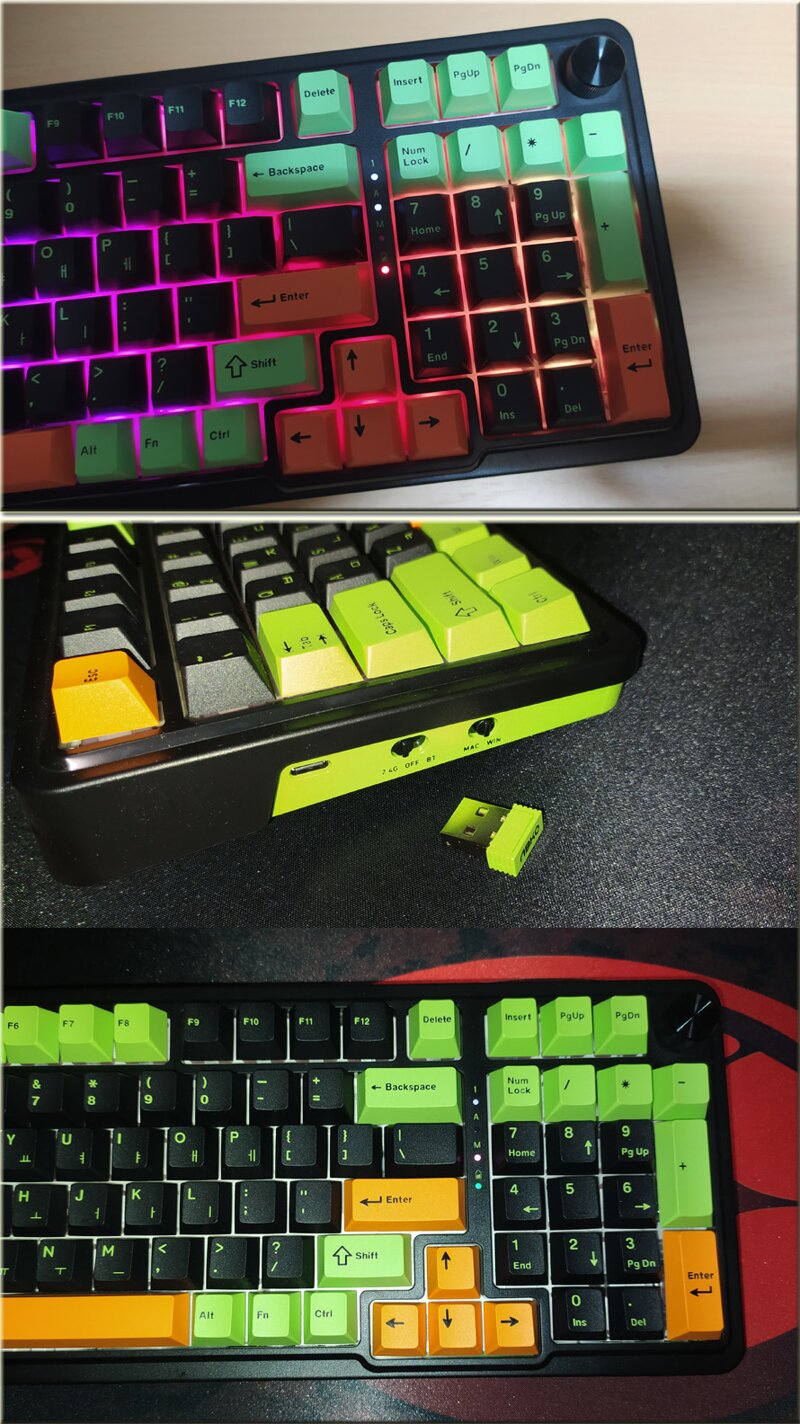
When connecting the keyboard using a wireless receiver, switch the left switch to wireless and press FN + 4 for about 3 seconds, then the LED marked with M will blink in pink. At this time, connect the wireless receiver to the USB port of the computer. In this case, when connected wirelessly, the pink LED will be fixed in the mode change status indicator.
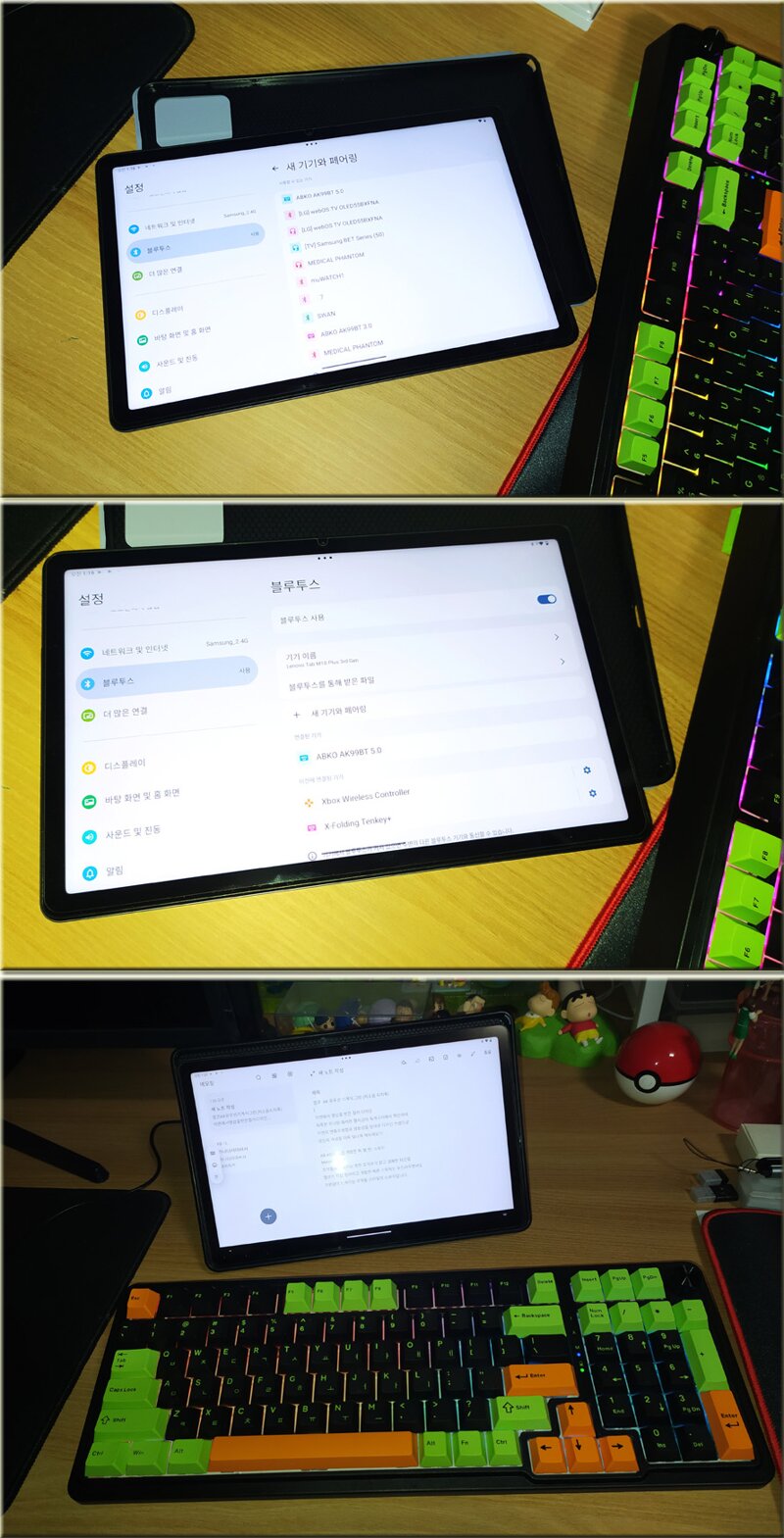
Change the keyboard's left switch to Bluetooth mode, and press FN+1 (or 2,3) for about 3 seconds, then the M indicator will blink in blue. At this time, go to Tablet Settings - Bluetooth and pair it. When connected via Bluetooth, the blue LED will be fixed.
Foldable Bluetooth keyboards are convenient to carry, but uncomfortable to type on. When using a tablet indoors, using a keyboard such as the ABKO AK99 makes it easier to enter text. It seems that Korean-English conversion is not possible with the Han/Eng key, and as with general Bluetooth keyboards, it is changed with Shift + Spacebar. Also, there is a point to note about the Caps Lock key: just as English letters are capitalized when the Caps Lock key is activated and lowercase when deactivated, in the case of Korean, when the Caps Lock key is activated, ㅂ,ㅈ,ㄷ,ㄱ, etc. are entered as double consonants, so be careful when using it.
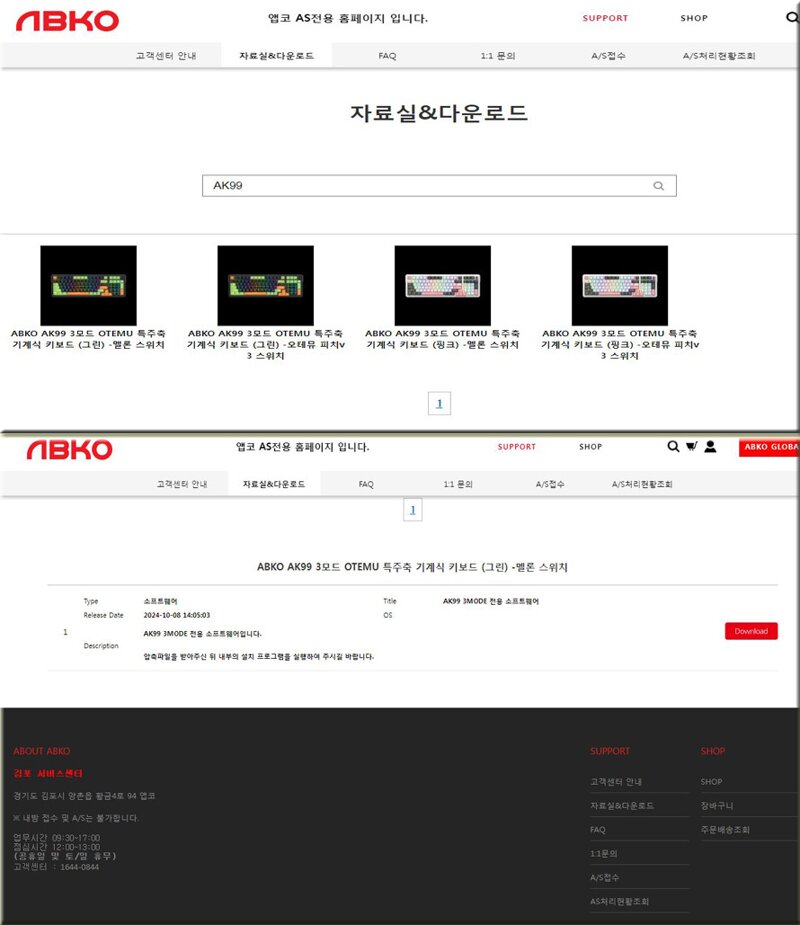
ABKO Homepage Data Room (http://ncore.co.kr/bbs/data.php) and search by product model name to download the dedicated software.
The left menu is largely classified into Global Settings / Key Assignment / Lighting Effects / Effects / Macro Editing Panel
1. In the Global Settings menu, you can check device information, start and end settings, etc.,
2. In the Key Assignment menu, you can assign multimedia, macros, general command combinations, etc.,
3. In Lighting Effects and 4. Effects, you can change the LED mode operation and method, etc.,
5. In the Macro Editing Panel, you can create and save macros.

To explain macro editing, go to the Macro Editing Panel, press the + key on the top to specify a new macro name, press the record button, enter all the desired keys, stop, and save.
Return to the Key Assignment menu, assign a macro to an arbitrary key, open Notepad, and check the execution to complete. Macro input works well~
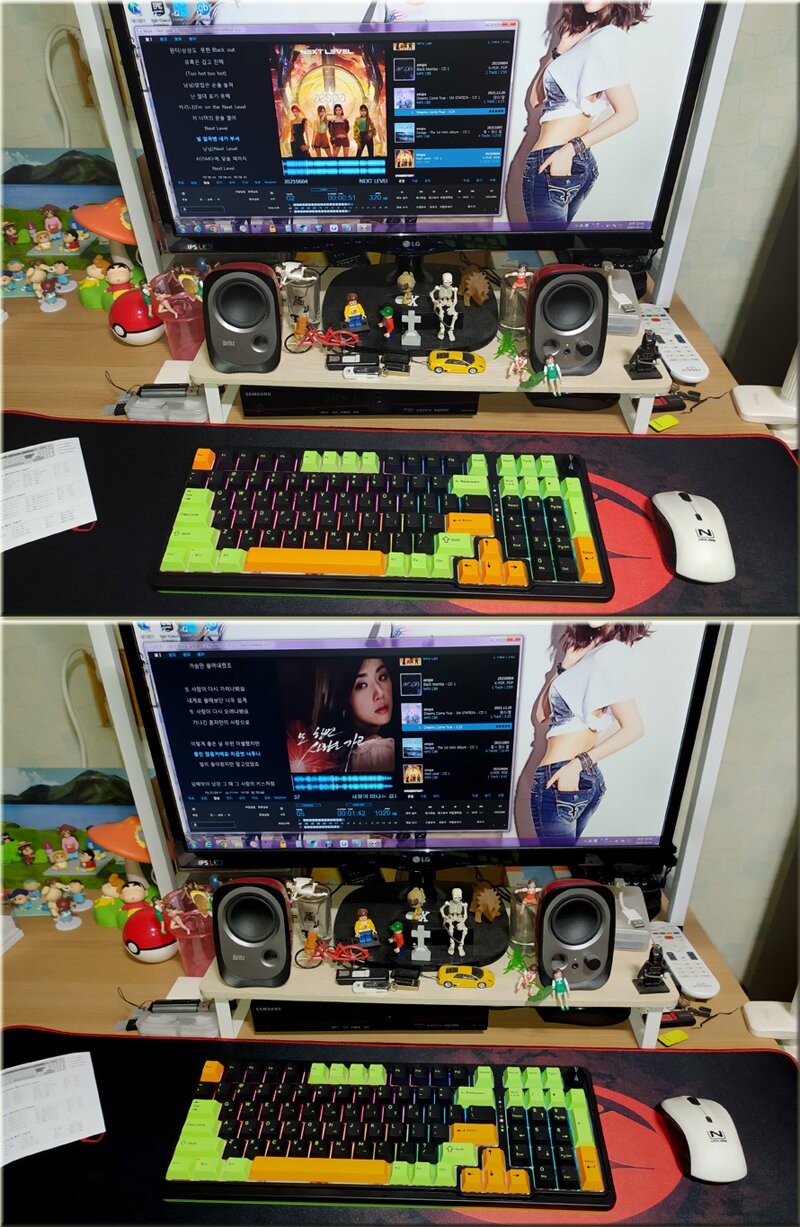
Multimedia function keys are also provided, which can be used in combination with FN + F1~F12. However, in the case of ABS keycaps, it was easy to see and use because the function keys were printed on the F1~F12 keys, but since it is a PBT material keycap, there is no function key description on the keys, so it is recommended to refer to the manual until you are familiar with it. It was also convenient to control the music player by providing various function keys such as FN+F7 (previous song), FN+F8 (play/pause), FN+F9 (next song).
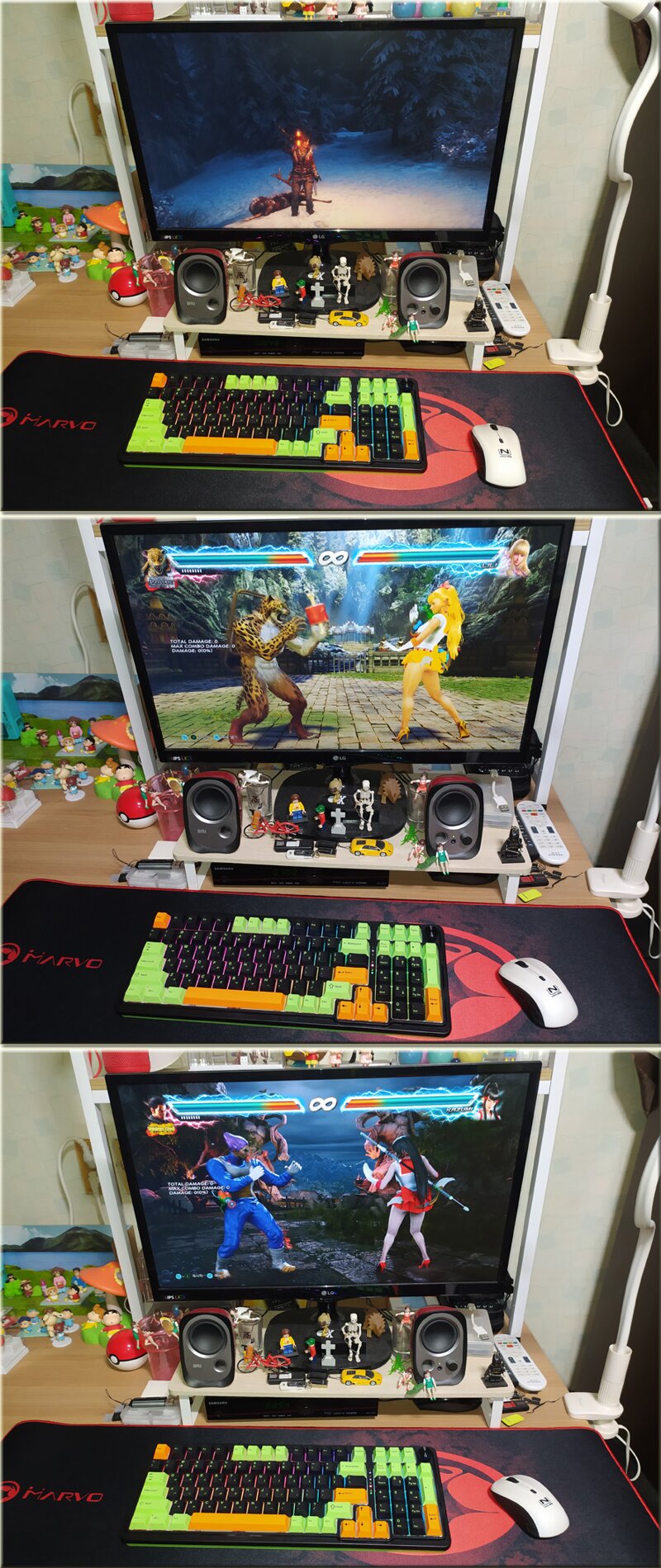
The ABKO AK99 3-mode OTEMU custom switch keyboard supports N-key rollover like a mechanical keyboard, so you can comfortably enjoy various game genres such as FPS, TPS, RPG, racing, and fighting games. The chewy and bouncy typing feel, combined with smoothness, allows you to enjoy gaming comfortably for a long time.
The ABKO AK99 Wireless/Wired Mechanical Green (Low-Noise Peach Switch) provides a unique keycap color design and vivid, beautiful, and diverse RGB LEDs to catch the eye. The application of high-quality PBT material keycaps makes it very durable. The 5-layer layout structure, FR4 flex-cut structure PCB, and silicone gasket are installed to prevent contact between the plate reinforcement plate and the housing, effectively suppressing the echo, and the chewy yet extremely smooth typing feel and fast response speed make it a great product.
The keyboard's size is 393.6 x 144 x 35 mm and weighs about 989g. It features a 99-key layout with OTEMU low-noise Peach switches (the low-noise Peach switch is almost similar to the Red switch), providing a very smooth and chewy typing experience. It supports a 1000Hz polling rate, and as the name suggests, it supports wired, wireless, and Bluetooth, and supports both Windows and macOS, making it a versatile mechanical gaming keyboard product. I will conclude the review here.
"This review was written with a product provided by ABKO"
IT 인벤 유저리뷰사용기나유타
2024-10-31