Post
Rendering Ratio and Resampling Quality
Hello, I'm Quixotic_아즈샤라
I've prepared some tips on rendering scale options and resampling quality.
There's an option called rendering scale in WoW graphics options.

Rendering scale is related to resolution.
If your monitor is a 4K monitor, the resolution is 3840 x 2160.
If you set the rendering scale to 50% at this time, it becomes 1920 x 1080, which is FHD resolution.
The display resolution remains the same, but the game down-renders to a resolution that matches the rendering scale, and then
It upscales it to the original resolution and outputs it.
So how do you use this option?
If you set the rendering scale below 100%,
In theory, you can get higher FPS.
This is because it reduces the amount of work in the rendering process.
Naturally, rendering is the domain of the GPU, so it reduces the GPU load.
The actual performance improvement in WoW, where the GPU load is not high, is not very high.
If your GPU usage is more than 50%, lower the rendering scale
You may be able to gain a performance advantage.
How can users who don't have a high GPU load take advantage of this?
There is an option related to rendering scale.
It's the resampling quality option and sharpness.
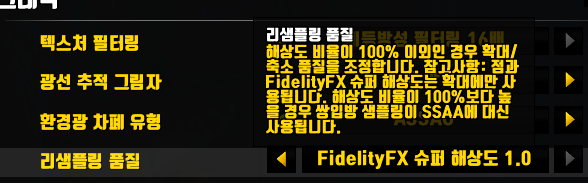

If you lower the rendering scale, you need to render at a lower resolution and then upscale it to the original resolution.
In this upscaling process, the results of screen sharpness and blur effects vary depending on the resampling method.
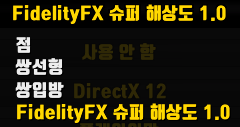
There are choices of Point, Bilinear, Bicubic, FidelityFX Super Resolution 1.0.
The result of the image quality gets better and better in order
The requirements are higher in terms of performance in order.
That is,FidelityFX Super Resolution 1.0 provides the clearest and best image quality
It eats up the most performance.
To use this resampling quality, the rendering scale must be below 100%.
Since it is a technology used when upscaling after down-rendering
It does not work at 100% rendering scale.
Resampling sharpness change at 100% rendering scale
Resampling sharpness change at 98% rendering scale
Please check the sharpness change of the character's decorations and hair.
To use resampling quality, you need to lower the rendering scale.
In the game, the rendering scale can be adjusted by 2%.
But
/console set renderscale 0.999
You can reduce the rendering scale by only 0.001 through the above macro.
In other words, minimizing damage to the original image
It is possible to get graphic sharpness by using resampling quality.
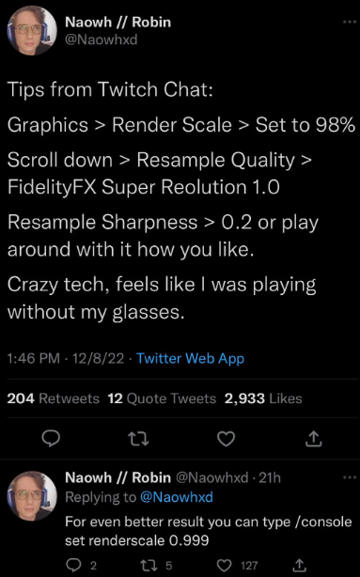
A setting method that became famous with Nao's tweet during the Shadowlands era.
An issue has arisen regarding this rendering scale in Dragonflight.
It worked well until Shadowlands
From Dragonflight, if the rendering scale is not 100%, frame drops occur.
My monitor is 240Hz, and I limit the maximum foreground FPS to 224.
100% rendering scale - average FPS
98% rendering scale - average FPS
The cause of these frame drops is the "Liquid Detail" option.

If this "Liquid Detail" option is set higher than usual
It causes severe frame drops when the rendering scale is lower than 100%.
98% rendering scale / Liquid Detail: Low - Average FPS
As in the example screenshot above, when liquid detail is set to Normal or Low
Even if the rendering scale is lower than 100%Frame drops do not occur.
In the case of this liquid detail, I recommend Low or Normal even if you exclude the rendering scale issue.
It causes a fairly significant performance difference.
.
.
.
.
So let's summarizeLet's see
For normal users, it is recommended to maintain the rendering scale at 100%.
If your GPU usage is high, it is recommended to set the rendering scale low.
However, in this case, liquid detail must be set to Low or Normal.
If you only want to use the graphic sharpness function of resampling quality
/console set renderscale 0.999
Use a macro to minimize damage to the original image
Try using resampling sharpness.
World of Warcraft Inven Expansion Pack Tips and Know-howQuixote
2025-02-15