Post
Free Fire: How to Fully Configure OP Skin Tool Pro (Latest Updated Version)
Explains how to download and set up the latest version of OP Skin Tool Pro in Free Fire. Covers checking the Android version, connecting the Suk app, setting developer options, and applying skins.
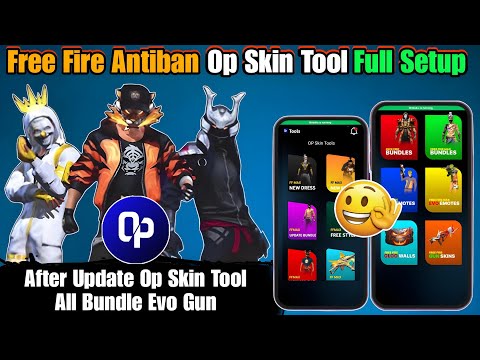
1. Introduction to OP Skin Tool and the Necessity of Connecting the Suk App
Introduction to the full setup video of OP Skin Tool version 17
Suk app connection required for Android version 11 or higher
Suk app connection not required for versions below 11
Connect the Suk app using Wi-Fi (utilize a hotspot)
00:00 - 01:25
1. Introduction to OP Skin Tool and the Necessity of Connecting the Suk App
Introduction to the full setup video of OP Skin Tool version 17
Suk app connection required for Android version 11 or higher
Suk app connection not required for versions below 11
Connect the Suk app using Wi-Fi (utilize a hotspot)
01:26 - 02:35
2. How to Set Up the Suk App
Run the Szuko app and click the pairing option
Activate developer options (requires prior activation)
Enable and allow USB debugging
Check the pairing code and enter it in the Szuko notification
Start the Szuko app
02:36 - 03:19
3. Troubleshooting the Suk App (OPPO, Vivo)
How to solve the problem of the Suk app not working on OPPO and Vivo phones
Activate 'Disable monitoring' in developer options
03:20 - 04:52
4. How to Use the OP Skin Tool
Run the OP Skin Tool and select Free Fire or Free Fire Max
Download and use glitch files
Apply various skins, bundles, gun skins, and emotes
Select the desired item, click 'Tap to Unlock', and then click 'Apply' to apply
Check in-game after applying
04:53 - 05:05
5. Wrap-up
Request video likes and channel subscriptions
Teaser for the next video