Post
Battlefield 6 Best Aim Assist Settings Guide After Update 🎮
Here are the best aim assist settings for controller players in Battlefield 6 after the recent update. These settings are effective for PS5, Xbox, and PC controllers, finely tuning aim assist type, strength, response curve, sensitivity, and deadzone values to improve handling, recoil control, and close/long-range adjustments.
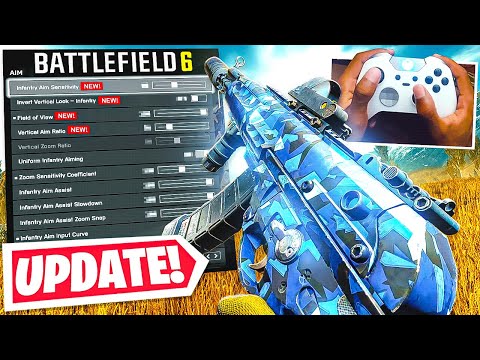
1. 🎮 Battlefield 6 Controller Settings Introduction and Importance
- ✅ Aim assist in Battlefield 6 has been enhanced after the recent update, making it more advantageous for controller players.
- ✅ Using an Xbox Elite controller on PC with short paddles set up for jumping.
- ✅ These settings apply no matter what controller you use, or whether you're playing on console or PC.
- ✅ Using the Alternate button preset, the crouch/prone button is changed to right stick press, increasing survivability with quick stance changes.
- ⚠️ Mitch Cactus offers weapon and rank leveling services, and you can use the code 'EARS' for a 5% discount.
00:00 - 01:26
1. 🎮 Battlefield 6 Controller Settings Introduction and Importance
- ✅ Aim assist in Battlefield 6 has been enhanced after the recent update, making it more advantageous for controller players.
- ✅ Using an Xbox Elite controller on PC with short paddles set up for jumping.
- ✅ These settings apply no matter what controller you use, or whether you're playing on console or PC.
- ✅ Using the Alternate button preset, the crouch/prone button is changed to right stick press, increasing survivability with quick stance changes.
- ⚠️ Mitch Cactus offers weapon and rank leveling services, and you can use the code 'EARS' for a 5% discount.
01:41 - 03:57
2. 🎯 Optimal Controller Settings: Sensitivity, FOV, Aim Assist Strength
- ✅ Recommends playing in the 40-50 sensitivity range. It's advantageous in close, medium, and long-range engagements.
- ✅ Using 100-120 FOV allows you to secure a wider field of view, and you can feel smoother controls with enhanced aim assist.
- ✅ Set the vertical aim ratio to 50 and the zoom ratio to 75.
- ✅ Setting Infantry Aim Assist and Slowdown to 100 gives the stick a sticky feel, making it easy to snap to enemies.
- ✅ Set the Infantry Aim Input Curve and Zoom Input Curve to Battlefield 3, and the Acceleration Preset to Battlefield 1.
- ✅ Set the aiming left/right acceleration to 30.
03:58 - 05:45
3. ⚙️ Fine-Tuning Settings: Zoom Sensitivity, Controller Tuning
- ✅ Set Infantry Zoom Sensitivity to 80 and turn off Smoothing.
- ✅ Lower 1.0x to 4.5x zoom from 100 to 80 to aim more accurately at long range.
- ✅ Raise 5.0x to 10.0x zoom from 100 to 110 to move and aim faster.
- ✅ It is recommended to turn off vibration in controller tuning. Vibration can interfere with long-range aiming.
- ✅ Adjust deadzone settings according to personal preference and controller condition. If there is stick drift, adjust the deadzone to compensate.
05:46 - 07:53
4. 🎨 Adjusting Graphics Settings: Motion Blur, Camera Shake
- ✅ Set Weapon Motion Blur and World Motion Blur to 0. Reduces blurring of the screen, making it easier to identify enemies.
- ✅ Reduce the amount of camera shake to 50. Reduces screen shake from explosions, etc., allowing for more accurate aiming in long-range engagements.
07:54 - 10:26
5. 🎮 Testing Settings and Checking Aim Assist Effects
- ✅ Check the aim assist effect by testing the settings at the shooting range.
- ✅ Aim assist has been enhanced after the update, providing more help to controller players.
- ✅ You can snap to enemies more easily at medium to long range, and the controls become smoother and more predictable.
- ✅ You can use a variety of weapons, including core weapons, more effectively.
- ✅ It is recommended to pull the right stick slightly with burst fire.
- ✅ Please share your feedback on the new aim assist update and bloom reduction in the comments.