Post
Optimal Sensitivity and Settings Guide to Improve Free Fire Headshot AccuracyThis is the ultimate guide for players who want to maximize their headshot accuracy in Free Fire. It provides detailed instructions on optimal sensitivity settings applicable to all devices, from 2GB to 16GB RAM, along with how to enable 120FPS for smoother gameplay. With this guide, you too can land precise headshots like a pro player.
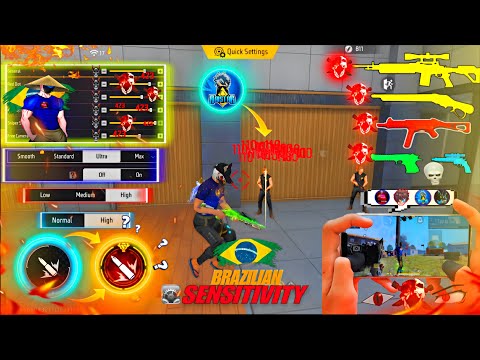
1. 🎯 Headshot Sensitivity and Fire Button Settings for All Devices
· These are the optimal sensitivity settings applicable to all Android devices (Oppo, Vivo, Poco, Redmi, etc.) from 2GB to 16GB RAM.
· Apply the sensitivity settings below for accurate headshots.
· It is recommended to set the fire button size to 50 or 45.
· Position the fire button close to the center of the screen to facilitate drag headshots.
· Apply the sensitivity settings below for accurate headshots.
| Category | Setting Value |
|---|---|
| General | 185 |
| Red Dot | 150 |
| 2x Scope | 142 |
| 4x Scope | 170 |
| Sniper Scope | 190 |
| Free Look | 200 |
· It is recommended to set the fire button size to 50 or 45.
· Position the fire button close to the center of the screen to facilitate drag headshots.
01:31 - 03:58
1. 🎯 Headshot Sensitivity and Fire Button Settings for All Devices
· These are the optimal sensitivity settings applicable to all Android devices (Oppo, Vivo, Poco, Redmi, etc.) from 2GB to 16GB RAM.
· Apply the sensitivity settings below for accurate headshots.
· It is recommended to set the fire button size to 50 or 45.
· Position the fire button close to the center of the screen to facilitate drag headshots.
· Apply the sensitivity settings below for accurate headshots.
| Category | Setting Value |
|---|---|
| General | 185 |
| Red Dot | 150 |
| 2x Scope | 142 |
| 4x Scope | 170 |
| Sniper Scope | 190 |
| Free Look | 200 |
· It is recommended to set the fire button size to 50 or 45.
· Position the fire button close to the center of the screen to facilitate drag headshots.
04:50 - 07:01
2. 🎮 Optimal Graphics Settings and In-Game Options by RAM Capacity
· Apply optimal graphics settings according to your device's RAM capacity for a smooth gameplay experience.
· 'Performance Mode' is only activated with 'Ultra' settings; set it to 'Off'.
· Set the 'High Resolution' option to 'High'.
· Set the 'Filter' option to 'Ocean'.
· Set the 'FPS' setting to 'High'. If there is a 120FPS option, set it to 120FPS.
| RAM Capacity | Graphics Setting |
|---|---|
| 2GB ~ 3GB | Smooth |
| 4GB ~ 6GB | Standard |
| 8GB ~ 12GB | Ultra |
| 16GB | Max |
· 'Performance Mode' is only activated with 'Ultra' settings; set it to 'Off'.
· Set the 'High Resolution' option to 'High'.
· Set the 'Filter' option to 'Ocean'.
· Set the 'FPS' setting to 'High'. If there is a 120FPS option, set it to 120FPS.
07:02 - 09:20
3. 🚀 Enable 120FPS and Pointer Speed Settings for Smooth Gameplay
· In mobile settings, search for 'Pointer Speed' and set it to maximum.
· To enable the 120FPS option in-game, search for 'Refresh Rate' in mobile settings.
· Set the 'Screen Refresh Rate' option to 'High'.
· In 'Customize App Refresh Rate', find Free Fire or Free Fire Max and set it to 120Hz. This setting allows you to play at 120FPS in-game.
· To enable the 120FPS option in-game, search for 'Refresh Rate' in mobile settings.
· Set the 'Screen Refresh Rate' option to 'High'.
· In 'Customize App Refresh Rate', find Free Fire or Free Fire Max and set it to 120Hz. This setting allows you to play at 120FPS in-game.