Post
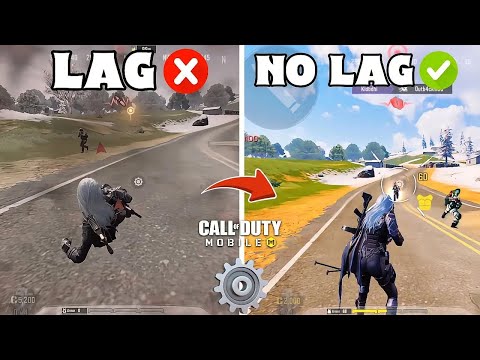
Call of Duty Mobile Lag and Frame Drop Perfect Solution! Game Performance Optimization Tips RevealedFrustrated by stuttering and frame drops in Call of Duty Mobile? This video provides 16 essential settings and tips to instantly boost your game performance. We've compiled optimization methods to ensure a smooth gaming experience, even on low-spec devices.
1. 🎮 Optimizing Graphics Settings: Key to Smooth Gameplay on Low-Spec Devices
· Optimal graphics settings are crucial for resolving stuttering and frame drops. Call of Duty Mobile demands high specs, so it's recommended to set low or medium graphics options with high frame rates. This helps reduce device heat and maintain consistent frames.
· Specifically, we recommend disabling Anti-Aliasing and Super Resolution. These settings make graphics more realistic but can intensify device heat and cause frame drops and stuttering. Disable these in both Battle Royale and Multiplayer modes.
· Specifically, we recommend disabling Anti-Aliasing and Super Resolution. These settings make graphics more realistic but can intensify device heat and cause frame drops and stuttering. Disable these in both Battle Royale and Multiplayer modes.
00:02 - 00:59
1. 🎮 Optimizing Graphics Settings: Key to Smooth Gameplay on Low-Spec Devices
· Optimal graphics settings are crucial for resolving stuttering and frame drops. Call of Duty Mobile demands high specs, so it's recommended to set low or medium graphics options with high frame rates. This helps reduce device heat and maintain consistent frames.
· Specifically, we recommend disabling Anti-Aliasing and Super Resolution. These settings make graphics more realistic but can intensify device heat and cause frame drops and stuttering. Disable these in both Battle Royale and Multiplayer modes.
· Specifically, we recommend disabling Anti-Aliasing and Super Resolution. These settings make graphics more realistic but can intensify device heat and cause frame drops and stuttering. Disable these in both Battle Royale and Multiplayer modes.
01:00 - 01:30
2. 📦 Improving Performance with SD Map Downloads and Disabling Unnecessary Settings
· Call of Duty Mobile offers an option for low-spec devices to download the Battle Royale map 'Isolated' in SD mode. This allows you to use an optimized map, providing immediate effects on frame rate improvement and stuttering issues.
· It's also important to turn off unnecessary settings within the game. These settings can cause frame drops and stuttering without significantly impacting gameplay, so disable them to optimize your device's performance.
· It's also important to turn off unnecessary settings within the game. These settings can cause frame drops and stuttering without significantly impacting gameplay, so disable them to optimize your device's performance.
01:55 - 02:34
3. ⚙️ Seamless Gaming Experience with Shader Preloading and FOV Optimization
· Enable the Shader Preload feature in the 'Audio and Graphics' settings. This function preloads graphic shaders, reducing in-game stuttering and frame drops. It enhances FPS stability, especially during intense battles in Battle Royale and Multiplayer.
· FOV (Field of View) settings are very important in the game. Increasing the FOV value allows for a wider view but puts more load on the device's processor, potentially causing stuttering and overheating. Therefore, low-spec device users should set an appropriate FOV value to prevent performance degradation.
· FOV (Field of View) settings are very important in the game. Increasing the FOV value allows for a wider view but puts more load on the device's processor, potentially causing stuttering and overheating. Therefore, low-spec device users should set an appropriate FOV value to prevent performance degradation.
03:04 - 04:07
4. 📶 Solving High Ping Issues: How to Use the GearUP Booster App
· High ping issues can disrupt gameplay and lead to immediate deaths. Using the GearUP Booster app is an effective way to resolve this. This app provides low-latency servers, instantly fixing network errors and high ping problems.
· Simply launch the app, select 'Call of Duty Mobile,' set 'Auto Server,' and click 'Boost.' This allows you to enjoy the game with low ping, improving fast movements and reaction times for pro-like play.
· Simply launch the app, select 'Call of Duty Mobile,' set 'Auto Server,' and click 'Boost.' This allows you to enjoy the game with low ping, improving fast movements and reaction times for pro-like play.
04:09 - 05:54
5. 📱 Optimizing Device Settings: Disabling Night Mode, Low Power Mode, and Cleaning Memory
· If you're using a low-spec device, it's recommended to disable the device's 'Night Mode.' This feature can cause in-game stuttering and frame drops.
· Also, make sure to turn off 'Low Power Mode' before playing. Low Power Mode limits graphics functions, negatively impacting game performance.
· Freeing up device memory is also important. Delete unused maps in the in-game download manager and utilize auto-download and auto-delete settings to free up space. You can clean unnecessary weapon skins and map resources using the 'Clean' function. Purchased skins are not permanently deleted, so you can clean them with confidence. For Android users, clearing the game cache can also be helpful.
· Also, make sure to turn off 'Low Power Mode' before playing. Low Power Mode limits graphics functions, negatively impacting game performance.
· Freeing up device memory is also important. Delete unused maps in the in-game download manager and utilize auto-download and auto-delete settings to free up space. You can clean unnecessary weapon skins and map resources using the 'Clean' function. Purchased skins are not permanently deleted, so you can clean them with confidence. For Android users, clearing the game cache can also be helpful.
06:15 - 07:01
6. 📶 Network and Background App Management: Using Wi-Fi and Closing Background Apps
· Call of Duty Mobile requires a stable internet connection, so using Wi-Fi is recommended over mobile data. Wi-Fi provides a stable connection and better performance, while reducing device overheating and battery drain issues that can occur with mobile data.
· When playing, close all unnecessary apps running in the background. This allocates more RAM and processing power to the game, effectively helping to resolve frame drops and stuttering.
· When playing, close all unnecessary apps running in the background. This allocates more RAM and processing power to the game, effectively helping to resolve frame drops and stuttering.
07:02 - 08:54
7. 🔄 Disabling Auto-Updates and Background Refresh, Updating Device and Game
· Android users should disable auto-update settings in the Google Play Store. Automatic updates consume data in the background, affecting game performance. Ensure seamless gameplay by turning off data synchronization and automatic updates.
· Keeping your device's firmware updated is also crucial. The latest software versions fix bugs and glitches, helping to resolve frame drop and stuttering issues. Additionally, always update the Call of Duty Mobile game itself to the latest version to fix bugs and optimize performance.
· Background App Refresh keeps app content data up-to-date but consumes a lot of internet data. Turning this off can improve internet data speed and help resolve stuttering, frame drops, and ping issues.
· Keeping your device's firmware updated is also crucial. The latest software versions fix bugs and glitches, helping to resolve frame drop and stuttering issues. Additionally, always update the Call of Duty Mobile game itself to the latest version to fix bugs and optimize performance.
· Background App Refresh keeps app content data up-to-date but consumes a lot of internet data. Turning this off can improve internet data speed and help resolve stuttering, frame drops, and ping issues.
09:10 - 09:35
8. 🌡️ Device Overheating Management and RAM Optimization: Avoid Playing While Charging and Use RAM Boosters
· Fully charge your device before playing and avoid playing while it's charging. Playing while charging intensifies device heat, affecting performance and causing stuttering. Consider using a portable cooler if necessary.
· Always clear RAM memory before playing and use a RAM booster app to optimize RAM. This ensures sufficient resources for the game to smoothly render graphics and maps, reducing battery drain and stuttering issues.
· Always clear RAM memory before playing and use a RAM booster app to optimize RAM. This ensures sufficient resources for the game to smoothly render graphics and maps, reducing battery drain and stuttering issues.